You cannot set up a YouTube pinned comment when scheduling a video, because a scheduled video is private and YouTube says comments are not available on private videos. The workaround is to post your comment as soon as the video goes public, then pin it.
This guide covers what YouTube Help says about comments and scheduling, what your channel needs before it can pin anything, the exact steps to pin at publish time, and how TrackMedia's YouTube connector fits in. Every YouTube claim comes from a page we opened on October 6, 2026, and we say where YouTube's pages are silent.
Can you pin a comment when scheduling a YouTube video?
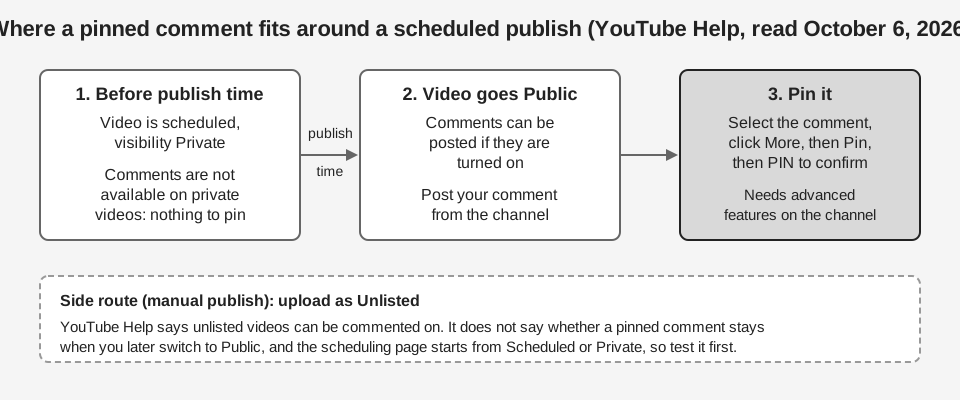
No. YouTube's Schedule video publish time page describes scheduling as a way "to schedule a private video to go public at a specific time". Its steps (Studio, CREATE, Upload videos, Schedule card) include no comment field.
The comment side is just as direct. YouTube's Post & interact with comments page says: "Comments are not available on private videos." Its pin steps start with "In the comments below a video, select the comment you want to pin", and there is no comment to select before the video can take comments.
YouTube's Change video privacy settings page repeats the rule in a table: a private video "Can be commented on: No", while unlisted and public videos are "Yes". We found no setting on the upload, scheduling or comments pages that pre-loads a pinned comment. That is a statement about the pages we read, not a guarantee about every Studio screen.
Sources: Schedule video publish time · Post & interact with comments · Change video privacy settings
What does your channel need before it can pin a comment?
Your channel needs access to advanced features. YouTube's comments page says "To pin comments, you must allow access to advanced features on your channel", and that these "may take up to 24 hours after they're turned on to show up across your channel."
YouTube's Get access to intermediate and advanced features page lists pinned comments as an example of an advanced feature, and it describes two steps. Step 1 is phone verification, which on its own gives you intermediate features. Step 2, after that, is either building sufficient channel history or verifying your identity with a valid ID or video. The page says ID and video verification is not available to all creators, and that most active channels already have enough history.
On a computer, the phone step is: sign in to YouTube Studio, click Settings, click Channel, then Feature eligibility, Intermediate features, VERIFY PHONE NUMBER. Finish both steps days before a launch, not minutes before the video goes live, because of the 24-hour delay.
Sources: Get access to intermediate and advanced features
How do you pin a comment once a scheduled video goes live?
Post the comment from the channel account right after the video turns public, then pin it. These steps combine YouTube's scheduling, comments and Studio pages:
- Confirm advanced features. In Studio, open Settings, Channel, Feature eligibility and check that your channel has them before the launch day.
- Write the comment ahead of time. Keep the text in a note so you can paste it the moment the video is public.
- Schedule the video as usual. In Studio, select CREATE, Upload videos, click the Schedule card, set the date, time and time zone, then select Schedule.
- Check that it actually published. YouTube says that if your account has a Community Guidelines strike, the scheduled video does not publish during the penalty period. It is set to private and you must reschedule it.
- Post your comment. Open the public watch page signed in as your channel and add the comment.
- Pin it. Select the comment, click More, then Pin, and click PIN to confirm.
You can also pin from Studio. YouTube's Review & reply to comments page says to select Community in the left menu and use the Published tab. It describes Pin as "Select More, then Pin", and notes the option "only appears when viewing comments for an individual video".
If you would rather not wait for the schedule, YouTube's scheduling page says to open Content in the left menu, select the video, choose Edit Visibility from the dropdown, set it to Public, then select Publish. You can post and pin the comment as soon as it is public.
Three behaviors are worth knowing. Pinning a new comment replaces an existing pinned one, and you can unpin at any time. On a computer, viewers see the pinned comment at the top of the watch page with a "Pinned by" icon and your channel name, while on mobile they must expand the comment section. YouTube also says pinning "doesn't guarantee" the comment shows in the short comment preview, though it still appears first when someone taps to view all.
Sources: Review & reply to comments
Can an unlisted upload or the API pin a comment early?
An unlisted upload can take comments, but YouTube does not document the pin carrying over. YouTube's comments page says "post an unlisted video instead" if you want comments on a video that is not publicly available, and the privacy page says unlisted videos can be seen by anyone with the link. No page we read says whether a comment pinned on an unlisted video stays pinned after you switch to Public. The scheduling page also tells you to start from "scheduled" or "private", so this route means switching the video to Public by hand. Test it on a throwaway video first.
The API does not fill the gap either. Google's Comments resource lists five methods: list, insert, update, delete and setModerationStatus. The commentThreads.insert page says it creates a top-level comment, costs 50 quota units and needs the youtube.force-ssl scope. Neither page mentions pinning, so as of October 2026 we found no documented way to pin a comment through the API.
Sources: Comments resource · commentThreads.insert
How does TrackMedia handle YouTube comments?
TrackMedia uploads your video on schedule and leaves the comment to you, so you pin it on the live video the moment it goes public. Here is what its YouTube connector does:
- Uploads at the time you set. TrackMedia holds the schedule and starts the upload when the post comes due, with the title, description and tags you wrote. The connector's default visibility is public, so the video is public once the upload finishes and ready for the pin steps above.
- Files it into a playlist. Pick one of your channel's playlists in the composer and TrackMedia adds the video to it right after the upload. That is the one thing it uses Google's
youtube.force-sslpermission for; it does not post or pin comments with it. - Lets you skip the subscriber notification. Tick "Don't notify subscribers" when a video should go out quietly, for example a re-upload.
- Keeps first comments for the networks that take them. TrackMedia adds a first comment on Instagram automatically. On a YouTube target, its validation tells you the comment is yours to post, which matches YouTube's own rule that a pin waits for a public video.
- Can hand the schedule to YouTube through the API. Two per-target overrides go straight to YouTube. A
visibilityvalue becomes the video's privacy status, and apublishAttimestamp uploads the video as private with YouTube's ownstatus.publishAt, so YouTube makes it public at that time. Google's Videos resource page saysstatus.publishAtcan be set only if the privacy status is private, so a video uploaded that way is a scheduled private video until then and the pin waits for its publish time.
In practice, the video is public once TrackMedia has published it, so you can open it and pin your comment straight away; with the publishAt override, pin it at the time you set. Instagram works differently: our guide to automating Instagram posts covers the first comment TrackMedia adds there. See how publishing works in TrackMedia, or the YouTube Shorts length and aspect ratio guide if you are scheduling Shorts, and managing multiple social media accounts if you run several channels.
When you are ready, start free with TrackMedia and schedule your next upload.
Sources: Videos resource
How we checked this
We opened each page below on October 6, 2026 and copied labels and quotes from the page text. We did not schedule a video on a live channel, so the Studio screens after scheduling are described only as far as the Help pages describe them. TrackMedia behavior comes from the YouTube connector code in its repository, read the same day.
- Post & interact with comments (YouTube Help, computer): private videos, unlisted videos, pin steps, advanced features, preview note.
- Review & reply to comments (YouTube Help, computer): Community, Published tab, Pin in Studio.
- Schedule video publish time (YouTube Help, computer): scheduling and editing steps, strike note.
- Change video privacy settings (YouTube Help, computer): private versus unlisted and the comments table.
- Get access to intermediate and advanced features (YouTube Help, computer): phone verification path, pinned comments as an advanced feature.
- Comments resource and commentThreads.insert (YouTube Data API): methods, quota, scope.
- Videos resource (YouTube Data API): the rule for
status.publishAt.
We could not verify what Studio's Content list shows for a scheduled video, whether a comment pinned on an unlisted video stays pinned after it goes public, the mobile app's pin steps, or any way to pre-load a pinned comment, so none are stated as fact. YouTube changes these features, so check the live pages before a launch.