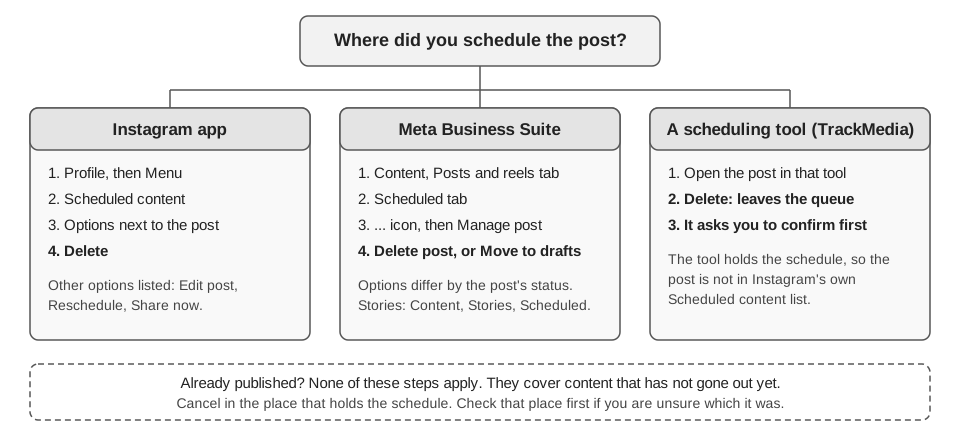
To cancel a scheduled post on Instagram, open your profile, tap Menu, tap Scheduled content, tap Options next to the post and choose Delete. Instagram's Help Center lists no separate "unschedule" option for the app, so Delete is the documented way to stop a scheduled post from going out.
Where you cancel depends on where you scheduled it: the Instagram app, Meta Business Suite, or a third-party tool. This guide uses the menu names on Instagram's and Meta's help pages, read on October 6, 2026. To find a scheduled post in the first place, see our guide to seeing scheduled posts on Instagram.
How to cancel a scheduled post on Instagram in the app
Instagram's Help Center page on creating and managing scheduled posts and Reels gives two routes to your scheduled content. The first is through your profile:
- Open your profile. Tap Profile or your profile picture in the bottom right.
- Open the menu. Tap Menu in the top right.
- Tap Scheduled content. It is listed below Your insights and tools.
- Tap Options next to the post or reel you want to cancel.
- Select Delete. The same menu offers Edit post, Reschedule and Share now.
The second route starts from the Create screen. Tap Create in the top left, or swipe right anywhere in Feed, then tap Post or Reel. Tap Scheduled, select the item, tap Options, and choose from the same four options.
Should you delete it or reschedule it?
Delete if the post should never go out. Choose Reschedule if only the date or time is wrong, and Share now if you want it published immediately. All three live in the same Options menu, per Instagram's page.
Instagram's page does not say whether Delete asks you to confirm, or whether a deleted scheduled post can be recovered. Treat Delete as final: if you may want the caption or media again, save a copy first.
Instagram also does not describe a way to turn a scheduled post back into a draft from the app. If you want that, the next section describes what Meta Business Suite offers.
How to unschedule a post in Meta Business Suite
Meta Business Suite is a desktop option Meta documents for Instagram scheduling, and its menu lists more choices than the app's. According to Meta's page on creating and managing posts in Meta Business Suite on desktop, you do this:
- Go to Meta Business Suite and click Content in the left-hand menu.
- On the Posts and reels tab, pick Scheduled.
- Select the post, click the ... icon, then Manage post.
- Choose Delete post to cancel it, or Move to drafts to keep the post as a draft.
Meta lists Edit post, Reschedule post, Move to drafts, Delete post, Add collaborator and Enable remixing or Disable remixing, and adds that the options differ based on the post's status. The page does not spell out which options appear for a scheduled post, so go by what your screen shows. It also does not say whether Move to drafts keeps or clears the old date, so check the draft afterward.
Scheduled Reels and Stories
For a scheduled Reel, Meta's page on managing reels uses the same path (Content, Posts and reels, Scheduled, then ... and Manage post). Its option list includes Reschedule post, Move to drafts, Delete post and Delete reel, again depending on status.
Stories have their own tab. Meta's page on managing stories says to click Content, then Stories, choose Scheduled, select the story, and use the ... icon to publish, reschedule or delete it. Instagram's own scheduling page does not list Stories, so Meta Business Suite is the route Meta documents for scheduled Stories.
On the Meta Business Suite mobile app
Meta's rescheduling guide for mobile says to go to Posts and stories at the bottom, tap Posts, then Scheduled, and open the post. The three dots next to Post details open a menu that includes reschedule, edit, duplicate, move to drafts and delete. For a story, the three dots next to Story overview offer reschedule, delete or publish immediately.
How to cancel a post scheduled with a third-party tool
If a scheduling tool holds the post, cancel it in that tool. Meta's Instagram Platform content publishing guide describes publishing as two steps: create a media container, then publish it. The parameters that guide lists for creating a container include no publish time, and the guide tells app developers to enforce the publishing limit themselves "especially if your app allows app users to schedule posts". We did not open the endpoint reference, so we cannot rule out optional parameters there.
Our reading is that tools built on this route keep the schedule on their own side, so the post does not show up in Instagram's Scheduled content list. In that case deleting from Instagram's list cannot reach it, and you cancel in the tool. We do not know how any particular tool behaves, so check its own queue first. For the background, see how to automate Instagram posts.
How to cancel a post scheduled in TrackMedia
TrackMedia holds the schedule itself and publishes at the time you chose, so a TrackMedia post is cancelled in TrackMedia, not in Instagram. Open the post from the Posts page (filter by status Scheduled) or from the Calendar, then pick one of these:
- Delete. TrackMedia asks "Delete this post?" and explains that it is removed from the queue and will not be published anywhere. Anything already published stays on the platform. If a post is being published at that moment, TrackMedia refuses the delete.
- Edit or Publish now. Both are available while the post is a Draft or Scheduled.
The Posts page also has a bulk Delete for clearing several posts at once. Cancel before the scheduled time arrives. We do not document a cutoff for a post that is seconds from publishing, so do not rely on one.
TrackMedia cannot delete an Instagram post once it has been published; that has to be done in Instagram. See how publishing works in TrackMedia, or the guide to posting to Instagram and Facebook at the same time. If you want Facebook's side, see and edit scheduled posts on Facebook. You can start free with TrackMedia.
How we checked this
We opened each page below in a browser on October 6, 2026 and copied the menu names from it. We did not cancel a scheduled post on a live Instagram account. Where a page is silent, we say so instead of guessing.
- How to create and manage scheduled posts and Reels on Instagram (Instagram Help Center): both routes to Scheduled content and the options Delete, Edit post, Reschedule, Share now.
- Create and manage posts in Meta Business Suite on desktop (Meta Business Help Centre): Content, Posts and reels, Scheduled, Manage post and its options.
- Create and manage reels in Meta Business Suite (Meta Business Help Centre): reel path and options.
- Create and manage stories in Meta Business Suite (Meta Business Help Centre): scheduled Stories path.
- Reschedule posts and stories on Meta Business Suite mobile (Meta Business Help Centre): mobile steps and menu.
- Content Publishing (Meta for Developers, Instagram Platform): container and publish steps, publishing-limit advice.
What we could not verify: whether Instagram's own scheduling page has a separate computer version (its device picker lists Computer Help, and the view we could open showed the same app steps), whether Instagram's Delete asks for confirmation or can be undone, whether Move to drafts keeps the old date, which Meta Business Suite options show for a scheduled post specifically, whether content scheduled in Meta Business Suite also appears in the app's Scheduled content list, and the steps for deleting a post that is already published. TrackMedia's behavior comes from our product code, read the same day.