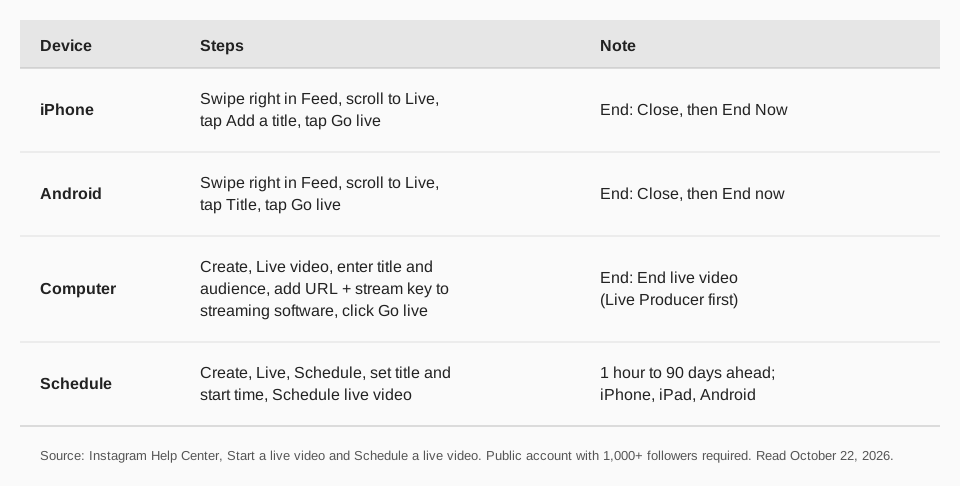
To go live on Instagram on a phone, swipe right anywhere in Feed, scroll to Live at the bottom, optionally add a title, then tap Go live. Instagram's Help Center says only users with a public account and 1,000 followers or more can start a live video.
This guide uses the Help Center pages "Start a live video on Instagram", "Schedule a live video on Instagram" and "Invite guests to join your live broadcast on Instagram", including the iPhone, Android and Computer versions, read on October 22, 2026. It also covers scheduling a live, inviting guests, ending a live, and why you may not see the option.
How to go live on Instagram on iPhone and Android
The steps are almost identical on both. The only wording difference is how you add a title. Instagram's page gives these steps:
- Swipe right anywhere in Feed, then scroll to Live at the bottom.
- Add a title (optional). On iPhone, tap Add a title, enter it and tap Done. On Android, tap Title on the left, enter it and tap Add title.
- Tap Go live at the bottom. The number of viewers appears at the top and comments at the bottom.
- Interact. Tap Comment to add a comment, or tap a comment and then Pin comment so viewers see it more easily.
- End the live. Tap Close in the top right, then End Now (End now on Android). You can then tap Share to put the replay on your profile.
Manage a live while it runs
The same page lists these controls, reached from Options at the bottom of the screen:
- Turn off commenting. Any keyword filters you turned on also apply to comments on your live video.
- Turn off requests to go live. This stops people asking to join you.
- Add from camera roll (iOS only). Show photos or videos from your camera roll. Only you can see them while you are sharing, and this is not available in a live room with guests.
How to go live on Instagram from a computer
Instagram's Computer version of the page uses Live Producer and streaming software that supports a custom RTMP connection. The page says:
- Open Instagram.com and click Create.
- Select Live video from the dropdown menu.
- Enter a title and select your audience. Practice does not start the live for anyone, and Public takes you live to your followers.
- Copy your URL and stream key. You can copy the stream key or reset it. The page notes it is not static and refreshes each time you use Live Producer.
- Set up your streaming software. Choose Custom RTMP and enter the URL and stream key. Where this setting lives differs between programs, but it is most often in stream settings.
- Start the stream in your software, check the preview in Live Producer (it can take a few seconds), then click Go live.
- End it. Click End live video in Live Producer first. The page warns that if you stop the software first, the live keeps showing the last frame it received.
Why can't I go live on Instagram?
The Help Center names these reasons:
- Followers and account type. You need a public account with 1,000 followers or more.
- Teen Accounts. The ability to go live is off by default. Teens under 16 need a parent's or guardian's permission to turn it on, and teens 16 to 17 can turn it on without permission.
- Removed content. You may not be able to go live if you previously posted something that was removed for going against Instagram's Community Standards.
- New accounts. Newly created accounts may not be able to go live. The page suggests checking your account status for your permissions.
If everything above is fine and the option is missing, update the app and check your account status in Instagram. Instagram's pages do not list further causes.
How to schedule an Instagram Live
You can schedule a live from 1 hour to up to 90 days ahead, on iPhone, iPad and Android. The page says scheduling is not available on computers. The iPhone steps are:
- Tap Create at the top or swipe right anywhere in Feed.
- Tap Live at the bottom, then Schedule on the left.
- Enter a title and choose a start time, then tap Done.
- Tap Schedule live video at the bottom. Tap Share if you want to promote it in a post or story, which includes the title, start time and a reminder option.
Your soonest scheduled live appears on your profile below your picture, where you can share, edit or cancel it. Instagram sends a reminder 24 hours and 15 minutes before it starts, and you can change the start time up until 45 minutes before.
How to invite guests to your live
You can invite up to three guests to a live room, and guests must be following you. While you are live, tap the icon for requests to join your room, tap to invite your followers, then tap Invite. To remove a guest, tap X in the top right of their video frame.
The page also describes the reverse: while watching someone's live, you can tap Send Request to ask to join, and you are notified if it is accepted.
What happens after the live?
Once a live ends, you can share a replay or access it in your Live Archive. The page notes that when you save it to your profile or download it, only the video is saved, not comments, likes or viewers.
How TrackMedia fits around your Instagram Live
The live itself happens in the Instagram app or Live Producer, and what comes before and after is where TrackMedia helps. A live with no audience is the most common problem, and that comes down to announcing it everywhere your followers are.
- Announce it on every network. Write the announcement once and TrackMedia fits a version to each of its 21 networks, including Instagram, X, Threads, LinkedIn, Facebook and Bluesky, with preflight checks before it goes out.
- Schedule the reminders. Put the announcement a week out, a reminder the day before and a "starting now" post in the calendar so you are not posting by hand while preparing to go live.
- Repost the replay. Cut highlights into Reels or short clips and queue them from your media library.
- Track what the live drove. Add UTM tags to the links in your announcements and see clicks, visitors and referrers per post and per network.
TrackMedia is free to start with 15 posts a month and no card. Start free with TrackMedia and schedule your next announcement. For more on Instagram, see our guides on posting Reels on Instagram, the best day to post on Instagram and building an Instagram content calendar. If you stream on YouTube, read how to schedule a YouTube live stream.
Questions people also ask
How do you go live on Instagram?
On a phone, swipe right anywhere in Feed, scroll to Live, optionally add a title and tap Go live. On a computer, use Create, then Live video, and stream with Live Producer and a custom RTMP URL and stream key.
How many followers do you need to go live on Instagram?
Instagram's Help Center says you need a public account with 1,000 followers or more.
How to go live on IG with someone else?
Start your live and invite up to three guests through Live Rooms. They must follow you. Viewers can also tap Send Request to ask to join.
Can you schedule an Instagram Live?
Yes, on iPhone, iPad and Android, from 1 hour to 90 days ahead. The page says it is not available on computers.
Can you save an Instagram Live after it ends?
Yes. After it ends you can share a replay or open it in your Live Archive. Only the video is saved, not comments, likes or viewers.
How we checked this
We opened each page in a browser on October 22, 2026 and copied the labels for the iPhone, Android and Computer versions. Instagram changes these pages, so check the live page if a label looks different.
- Start a live video on Instagram (Instagram Help Center): eligibility, phone and computer steps, managing a live, restrictions.
- Schedule a live video on Instagram (Instagram Help Center): scheduling steps, 1 hour to 90 days, reminders.
- Invite guests to join your live broadcast on Instagram (Instagram Help Center): up to three guests, requirements.