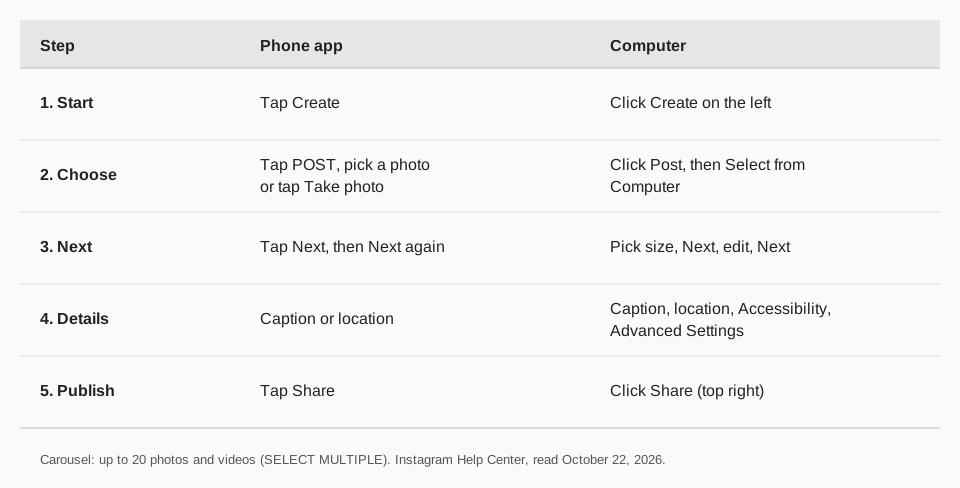
To post on Instagram, tap Create at the top of the app, tap POST at the bottom, choose a photo or video, tap Next twice, add a caption and tap Share. On a computer, click Create on the left, then Post, then Select from Computer.
The steps and limits here come from Instagram's Help Center pages Post a photo on Instagram, Share a post with multiple photos or videos and Image resolution of photos you share, read on October 22, 2026. The guide also covers captions, carousels, what size photos should be, and why a post may not go through.
Sources: Post a photo on Instagram · Share a post with multiple photos or videos · Image resolution of photos you share
How to post a photo on Instagram from your phone
Instagram's help page gives the same steps for the iPhone and Android apps:
- Tap Create at the top, or swipe right anywhere in Feed.
- Tap POST at the bottom.
- Choose the photo. Select one from your phone's library, or tap Take photo to use the camera. You can tap Rotate camera to switch between front and rear cameras and Flash to adjust the flash.
- Tap Next, then tap Next again. This second screen is where you add a caption or your location.
- Tap Share when you are done.
Instagram's page lists what you can add to a photo post: effects or filters, music, a caption and your location.
How to post on Instagram from a computer
Instagram's Computer Help view of the same page shows a different order, because the web version has its own menus:
- Click Create on the left.
- Click Post, then Select from Computer. Choose a photo or drag and drop a file. The supported formats listed are jpg, png and heic/heif.
- Select the size of your photo, then click Next in the top right.
- Click Filters or Adjustments at the top to edit it, then click Next.
- Add the details: a caption, your location, alternative text under Accessibility, or turn off comments under Advanced Settings.
- Click Share in the top right.
Our guide on how to post on Instagram from a computer goes deeper on Reels, Stories and scheduling from a desktop.
How to post several photos in one post (a carousel)
Instagram calls a post with more than one photo or video a carousel. The Help Center page says you can share up to 20 photos and videos as a single post. On iPhone and Android:
- Tap Create, then POST, then SELECT MULTIPLE.
- Select up to 20 photos and videos from your library, then tap Next in the top right.
- Apply a filter to every item at once, or tap one to edit it alone. Touch and hold an item and drag it to reorder.
- Choose Single caption or Multiple captions.
- Add one location, tag people in individual photos with Tag People, then tap Share.
Instagram notes that the orientation you choose (square, portrait or landscape) applies to all items, so you cannot give each its own. Videos inside a carousel are not considered Reels and will not show in the Reels tab. After sharing you can reorder items, remove them and edit captions from the three-dot menu, but you cannot add new photos or videos; you can only delete the post.
What size should an Instagram photo be?
Instagram's resolution page says it uploads photos at the best quality possible, up to a width of 1080 pixels. A photo between 320 and 1080 pixels wide keeps its resolution as long as its aspect ratio is between 1.91:1 and 3:4. Otherwise it is cropped to a supported ratio, and a higher-resolution photo is sized down to 1080 pixels wide.
In practice: upload a photo at least 1080 pixels wide, inside that ratio range, and nothing gets cropped for you. Our article on Reel vs Story vs post helps pick a format.
What should you write in the caption?
The caption is the text under the photo. It is where you give context and ask for an action. A simple pattern:
- Line one: the point of the post, in plain words. It is what people see first.
- Lines two and three: the detail, a story or the steps.
- Last line: one ask, such as a question, or "save this for later."
For a link people can tap, use the links section of your profile rather than the caption; our guide to writing an Instagram bio shows where.
Why can't I post on Instagram?
If the Share button fails or a post sticks at "uploading", check these:
- Update the app. Instagram's resolution page recommends the most recent version of the app.
- Check your connection. Instagram says posts with multiple videos may take longer to upload, so use a reliable network.
- Use the right device. Some features, such as adding a website link, are not available on computers per Instagram's pages.
If your account was restricted, see our article on the "we suspect automated behavior" message.
A short checklist before you tap Share
Instagram lets you edit some parts of a post after sharing, such as the caption of a carousel, but a quick check first saves the trouble. Run through these:
- Is the crop right? Instagram says the orientation you choose applies to every item in a carousel, so look at the crop before you share.
- Does the first line of the caption make sense alone?
- Is there alternative text? On a computer, Instagram's Accessibility option lets you write it. It helps people who use screen readers.
- Are comments on or off? The Advanced Settings screen on the web has a Turn off commenting option.
- Is the link going in the right place? Use your profile's links for anything people should tap.
What to do after you post
Instagram's insights page says you can see how a post did if you have a public personal or professional account. On iPhone, tap Profile, tap the post, then tap View Insights. The page lists Views, Interactions (likes, comments, saves and shares) and Profile activity, and says post insights stay available for up to two years.
Look at one thing at a time. If a post got many views but few saves, the first line or the photo hooked people but the content did not give them a reason to keep it. Our guide to what Instagram insights mean explains each number, and building an Instagram content calendar turns the results into a plan.
How to post on Instagram with TrackMedia
TrackMedia posts to Instagram for you, so you can write a post once and publish it at the time you choose. You connect an Instagram professional account (Business or Creator) that is linked to a Facebook Page, then:
- Write once. The composer fits the post to Instagram and to the other 20 networks, and its preflight check flags problems before it goes out.
- Add photos, videos or a carousel. TrackMedia supports carousels of up to 10 items, alt text and a first comment.
- Schedule it. Pick a time, or add the post to a queue fed by a content collection. The calendar shows what is coming.
- Track results. Per-post analytics show views, reach, likes, comments, saves and shares, including for posts you did not publish with TrackMedia. Links get UTM tags and real-time click tracking.
Stories are posted in the Instagram app, as covered in can you schedule Instagram Stories. The free plan includes 15 posts a month and one account per network, with no card. Start free with TrackMedia to schedule your first Instagram post.
Questions people also ask
How do I upload a photo to Instagram?
Tap Create, tap POST, select a photo from your library or tap Take photo, tap Next twice, add a caption, and tap Share. On a computer, click Create, then Post, then Select from Computer.
How do I make a post on Instagram?
Use the Create button. Choose Post for a photo or video that appears on your profile grid. Multiple photos or videos become one carousel post when you tap SELECT MULTIPLE.
How do you post on Instagram?
You post from the Instagram app on iPhone or Android, or from instagram.com on a computer. A scheduling tool like TrackMedia can publish it later through your linked professional account.
How do I upload a post to Instagram from a computer?
Click Create on the left, click Post, click Select from Computer and choose a jpg, png or heic/heif file. Pick the size, click Next, edit, click Next, add a caption, and click Share.
How many photos can I put in one Instagram post?
Instagram's Help Center says up to 20 photos and videos as a single post. TrackMedia's composer supports up to 10 in a carousel.
How we checked this
We opened each Instagram Help Center page below in a browser on October 22, 2026 and read the Android, iPhone and Computer Help views. Instagram updates its menus, so use the labels on your screen if they differ. TrackMedia's carousel limit and account requirements come from reading its Instagram connector code the same day.
- Post a photo on Instagram: app and computer steps, what you can add.
- Share a post with multiple photos or videos on Instagram: the 20-item carousel, captions, editing after sharing.
- Image resolution of photos you share on Instagram: 1080-pixel width and aspect ratio range.