To schedule a Facebook post, create the post for your Facebook Page in Meta Business Suite, choose to publish later, set the date and time, and confirm. On the Business Suite mobile app you tap Post, write it, tap Next, then Schedule for later, and finally Schedule.
Meta's scheduling help is written for Facebook Pages, not personal profiles. This guide uses Meta's Business Help Center pages on scheduling a Page post, Business Suite on desktop and the mobile app, plus Meta's Graph API reference, and says plainly where a page would not load for us on October 22, 2026.
Sources: scheduling a Page post · Business Suite on desktop · the mobile app
How do you schedule a Facebook post?
Scheduling a Page post is a Business Suite job on desktop and in the app. The flow is the same each time: you create the post, switch from posting now to posting later, and pick when it goes live.
On a computer
- Open Meta Business Suite for the Page you want. You need a Page role that lets you create posts.
- Create a post. Write the text and add photos, video or a link.
- Choose to schedule it instead of publishing now, then set the date and time.
- Confirm. The post appears in the calendar and in your scheduled list.
Meta's desktop help page covers creating, scheduling and managing posts. Its text did not load for us when we read it today, so we do not quote its button labels here. Follow the labels on your screen, and see our guide to seeing and editing scheduled Facebook posts for the Content and Planner menu names recorded from Meta's pages on October 6.
On your phone
Meta's mobile page describes this flow in the Meta Business Suite app:
- Tap Post and choose where it goes: your Facebook Page, Instagram or both.
- Write the post and tap Next.
- Review it, then tap Schedule for later and pick the date and time you want it to go live.
- Tap Schedule to finish. Tapping Save as draft instead keeps an unfinished post.
Scheduled items appear under Posts & Stories, then Calendar. On a personal profile, we found no Meta page that describes scheduling, so this guide does not cover one.
How far ahead can you schedule a Facebook post?
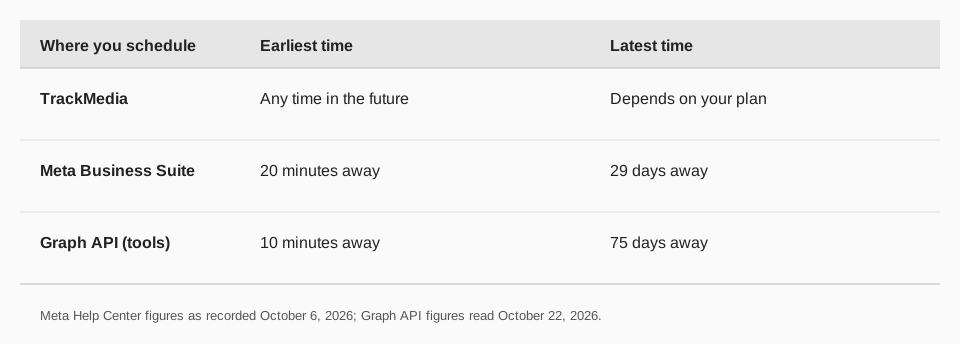
It depends on the route. Meta's Help Center, as recorded in our earlier guide on October 6, says Page posts can be scheduled between 20 minutes and 29 days away in your current time zone. Meta's developer documentation for the Graph API, read today, says the scheduled time "must be date between 10 minutes and 75 days from the time of the API request."
Tools that connect through the API can use the longer window. So if you need a post to go out next quarter, a scheduling tool is the way to get there. Meta's pages give no cap on how many posts you can schedule.
Why won't my Facebook post schedule?
- The time is too close or too far. Check the window above. A time less than 20 minutes ahead in Business Suite is not inside it.
- Missing role. Meta says you need a Page role that lets you create posts.
- The wrong Page is selected. Scheduled posts only appear under the Page they were made for.
- A past time. A date or hour already gone cannot be scheduled.
The same troubleshooting page records that a system error can stop a scheduled post from publishing, and that you can open the scheduled list and use Publish now on a failed post.
How to schedule Facebook posts with TrackMedia
TrackMedia schedules text, link, photo and video posts to your Facebook Page, on the same calendar as your other networks. This is the route to use when your plan goes past the Business Suite window, or when the same idea goes to several networks.
- Connect your Facebook Page. One Meta grant covers every Page you administer.
- Write once in the composer. TrackMedia keeps a version fitted to Facebook and runs preflight checks before the post is accepted.
- Pick a time, or use a queue. Choose an exact date and time, or let a posting queue fill from a content collection.
- Add a first comment if you want a link or a note in the comments.
- Track it. UTM-tagged links show clicks and visitors per post, and analytics show reactions, comments, shares and views.
Edits happen in TrackMedia: open the post, then Edit, Unschedule or Delete, or drag it to another day on the calendar. The farthest date you can pick depends on your plan, and the free plan includes 15 posts a month with one account per network and no card.
A post scheduled in TrackMedia is held by TrackMedia, so it does not show in Meta's Scheduled tab until it has published. For Reels and Stories, use Meta Business Suite. See our guides to scheduling Reels on Facebook, scheduling Facebook Stories and which platforms have native scheduling, then start free with TrackMedia.
Questions people also ask
How do I schedule FB posts?
Use Meta Business Suite for your Page: create the post, choose to publish later, set the date and time and schedule it. Or schedule from a tool such as TrackMedia.
How do I schedule a post on Facebook from my phone?
In the Meta Business Suite app, tap Post, write it, tap Next, tap Schedule for later, set the date and time, and tap Schedule.
Can you schedule a post on a personal profile?
Meta's scheduling help pages are written for Pages, and we found no page that describes scheduling on a personal profile.
Where do I find scheduled posts?
In Business Suite, under the scheduled list or the calendar. On mobile, look in Posts & Stories, then Calendar.
How we checked this
We checked these pages on October 22, 2026. Meta's Business Help Center pages returned only their titles to us that day, so the mobile steps above come from the text of Meta's mobile page as shown in search results, and the 20-minute to 29-day window comes from Meta's pages as recorded in our guide of October 6. We did not test scheduling on a live Page, and Meta changes its menus.
- Schedule a post and manage scheduled posts for your Facebook Page (Meta Business Help Center).
- Create and manage posts in Meta Business Suite on desktop (Meta Business Help Center).
- Schedule posts and stories in the Meta Business Suite mobile app (Meta Business Help Center): the Schedule for later flow.
- Graph API Page Feed reference (Meta for Developers): scheduled_publish_time, 10 minutes to 75 days.