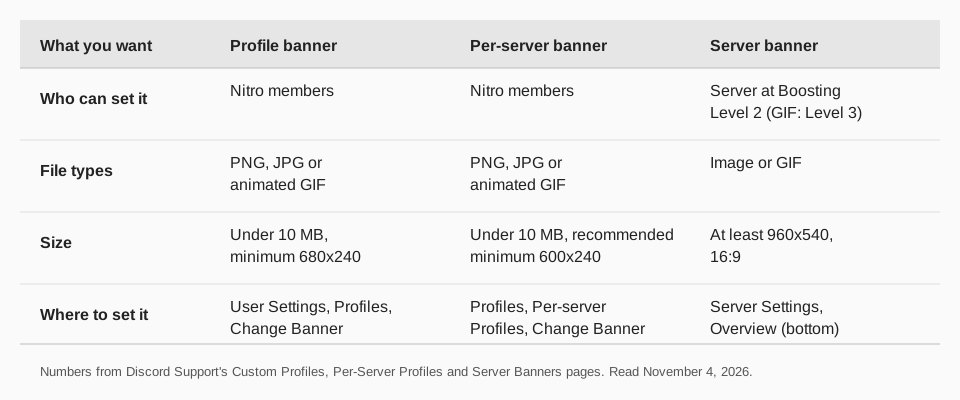
A Discord profile banner must be at least 680×240 pixels and a PNG, JPG or animated GIF under 10 MB, according to Discord's Custom Profiles page. A server banner is a different thing: Discord recommends at least 960×540 pixels in a 16:9 ratio, and the server needs Boosting Level 2.
This guide uses Discord Support pages read on November 4, 2026. Discord's own pages disagree on one number, the minimum profile banner size, so both versions are shown below with the page each comes from.
What size is a Discord profile banner?
Discord's Custom Profiles page says banners "must be PNG, JPG, or animated GIF files under 10MB, with minimum dimensions of 680×240 pixels." It also says only Nitro members can upload an image or animated GIF as their profile banner.
Discord publishes no maximum width or height and no single recommended size for a profile banner on the pages we read. The numbers are minimums, so a larger image with the same proportions as 680×240 (about 2.8:1) is a reasonable choice, but that proportion is our arithmetic, not a Discord recommendation. The crop step shows you what the banner will look like before you apply it.
Sources: Custom Profiles
Why do Discord's pages say 680×240 and 600×240?
Discord's Per-Server Profiles page says: "The recommended minimum size is 600x240." The Custom Profiles page says the minimum is 680×240. Both pages give the same file types (PNG, JPG or animated GIF) and the same 10 MB limit.
Discord does not explain the difference, so we cannot say which figure the upload screen enforces. The safe choice is to make the image at least 680×240, which satisfies both pages.
Sources: Per-Server Profiles
How do you upload a profile banner?
On desktop and mobile the path to the Profiles screen differs, then the banner steps are the same:
- Open your profile settings. On desktop, open User Settings with the cogwheel at the bottom left of the app and choose the Profiles tab. On mobile, tap your avatar in the bottom-right corner, then Edit Profile.
- Click or tap Change Banner. It sits under Profile Banner.
- Pick an image. You can upload your own image, or choose a GIF if you are a Nitro member.
- Crop it. Tap Apply when it looks right. If you tap Skip, Discord crops it with the default settings.
- Save. Save your changes on the Profiles screen.
Step 5 is our wording; the page lists Save for the other profile sections and does not repeat it under Banner.
What about a per-server profile banner?
Per-server profiles are a Nitro perk that lets you set a different avatar, banner and About Me in each server. The Per-Server Profiles page says to head to User Settings, then Profiles, then Per-server Profiles, and press Change Banner. Your main profile is unaffected in servers where you set nothing.
What size is a Discord server banner?
Discord's Server Banners page recommends an image or GIF of at least 960×540 pixels in a 16:9 aspect ratio, and says you can upload a 1920×1080 image and Discord will resize it for you. Its FAQ gives the same size for animated banners: 960×540 at 16:9.
The page adds a few guidelines:
- Keep the top 48px of the file fairly simple, so the server's title is easy to read.
- Avoid a logo or text in the image.
- Use art that represents your game or brand, such as key art or subtle background art.
The banner appears at the top of the channel list. The page does not state a maximum file size for server banners.
Sources: Server Banners
Who can set a server banner, and what does it cost?
A server banner needs a server at Boosting Level 2, and an animated banner needs Level 3. A Discord Partner server gets the banner perk without a Boosting Level. If a server drops from Level 3 to Level 2, the animated banner becomes static using the same image.
Server owners, and members whose role has the "manage server" or "administrator" permission, can upload it. Go to Server Settings, then Overview, and scroll to the bottom to the Server Banner Background section. To remove it, press Remove under the preview there.
Animated banners play for 5 seconds when the server first loads, then pause. They animate again on hover, and not at all when reduced motion is on.
Why is my server profile banner only a color?
Discord's Server Profile page describes a separate "banner" in the Server Profile tab: you select a color tile, and there is no image upload. The page says that if your server is discoverable and you set a custom banner, that banner is shown instead. So the 960×540 image and the color tile are two settings.
Sources: Server Profile
Why won't my Discord banner upload?
- No Nitro. Profile banners are Nitro-only on the Custom Profiles page.
- Image too small. Below 680×240 pixels breaks the stated minimum.
- Wrong format or too big. Use PNG, JPG or animated GIF under 10 MB.
- Server not boosted enough. A server banner needs Level 2, or Level 3 for a GIF.
- Missing permission. You need to be the owner or hold "manage server" or "administrator".
Post to Discord with TrackMedia
TrackMedia posts to a Discord channel through a webhook: you paste the channel's webhook URL, and you can set a display name that overrides the webhook's name on every post. It sends text, embeds and attachments (images, GIFs, video and audio, with alt text), and you can write the post once and send it to Discord alongside your other networks.
TrackMedia's Discord connector has no call for profile or server banners, so those stay in Discord's settings. See how to schedule messages on Discord for the posting side, and our guide to Discord profile picture and server icon sizes for the other images. For other networks, see YouTube banner size and Twitter banner size. When you want to publish to Discord and 20 other networks from one composer, start free with TrackMedia.
Questions people also ask
Is the Discord banner size 680x240 or 600x240?
Both appear on Discord's pages. Custom Profiles says the minimum is 680×240 and Per-Server Profiles says the recommended minimum is 600×240. An image of at least 680×240 meets both.
Can you have a Discord banner without Nitro?
Not a profile banner: Custom Profiles says only Nitro members can upload an image or animated GIF. Server banners depend on the server's Boosting Level, not on your own Nitro.
What is the Discord server banner size?
At least 960×540 pixels at 16:9, with 1920×1080 accepted and resized automatically.
Can a Discord banner be a GIF?
Yes. A profile banner can be an animated GIF for Nitro members, and a server banner can be animated at Boosting Level 3.
How we checked this
We opened each page below in a browser on November 4, 2026 and copied the labels and numbers from the page text. We did not sign in to Discord or change any setting, so we did not see the upload screens. Discord edits its help pages, so check the live page if a label differs.
- Custom Profiles (Discord Support): Nitro requirement, file types, 10 MB, 680×240, Change Banner, crop, Apply and Skip.
- Per-Server Profiles (Discord Support): the path to Per-server Profiles, Change Banner, the 600x240 figure.
- Server Banners (Discord Support): Boosting Levels, 960×540 at 16:9, guidelines, permissions, removal.
- Server Profile (Discord Support): the color-tile banner.
- TrackMedia's Discord connector code, for the webhook connection and attachment types.