To schedule a YouTube video, sign in to YouTube Studio, select CREATE then Upload videos, choose your file, click the Schedule card, set the date, time and time zone, and select Schedule. YouTube's help page says scheduled publishing lets you set a private video to go public at a specific time, so you can publish later without being there.
This guide follows YouTube's Schedule video publish time page, read on November 4, 2026, including its computer, Android and iPhone views. It covers changing the time, what private means while you wait, why a scheduled video may not go out, and how TrackMedia schedules YouTube uploads.
Sources: Schedule video publish time
How to schedule a YouTube video in YouTube Studio
These are the steps on YouTube's page. The page says to first set the video as "scheduled" or "private" on the upload page, and the Schedule card is how you do that:
- Sign in to YouTube Studio, or use the YouTube app.
- Select CREATE, then Upload videos.
- Select the file you want to upload and enter your video details.
- Click the Schedule card.
- Set the date, time and time zone you want the video published.
- Select Schedule.
On the phone the page lists the same flow: it says "Or use the YouTube app" and gives one set of steps, with the same iPhone and Android wording. We found no separate mobile-only labels, so go by what your screen shows. For a vertical Short, see our guide to scheduling YouTube Shorts; for a live stream, which has its own path in Studio, see how to schedule a live stream on YouTube.
If you have not uploaded to YouTube before, how to upload a video to YouTube covers the upload screen that comes first.
How to change the time or publish it now
You can change the scheduled publish time or publish the video right away. YouTube's page gives these steps:
- Sign in to YouTube Studio, or use the YouTube app.
- From the left menu, select Content, then select the video you want to edit.
- Click the Visibility dropdown. To change the time, make sure the visibility is Private, click EDIT DRAFT, then choose the new time under "Schedule".
- To publish immediately, set the visibility to Public, then select Publish.
The page does not describe a "cancel schedule" button. The nearest documented path is to make the video private again and not set a new time, but we did not test it on a live channel.
What can people see before it publishes?
A scheduled video is a private video until its time. YouTube's Change video privacy settings page says private videos can only be seen by you and whomever you choose, do not appear in the Videos tab of your channel homepage, and do not show up in YouTube's search results. Its comparison table lists a private video as not posted on your channel and unable to show up in search, related videos or recommendations.
The same page says YouTube systems and human reviewers may review private videos for ad suitability, copyright and other abuse prevention, so a private upload is still checked while it waits.
Sources: Change video privacy settings
Why didn't my scheduled video publish, or why is the date wrong?
The scheduling page names two causes.
- A Community Guidelines strike. If your account has a strike, your scheduled video will not publish during the penalty period. YouTube says the video is set to "private" for that period and you have to reschedule it when the freeze ends.
- A different date on the watch page. When a video goes public, the date on the watch page is based on Pacific Standard Time (PST). YouTube says you may see a different date there than in YouTube Studio if you upload a public video, or schedule a private one to go public, in a time zone ahead of PST. To get a certain date under the video, YouTube suggests scheduling it to go public on that date in Pacific Standard Time.
If the video never reached the Schedule step, it is not scheduled. Check Content in Studio for a private draft and finish the Schedule step. The best day and hour to pick is a separate question; our guides on the best time to post on YouTube and how often to post on YouTube cover it.
How to schedule a YouTube video with TrackMedia
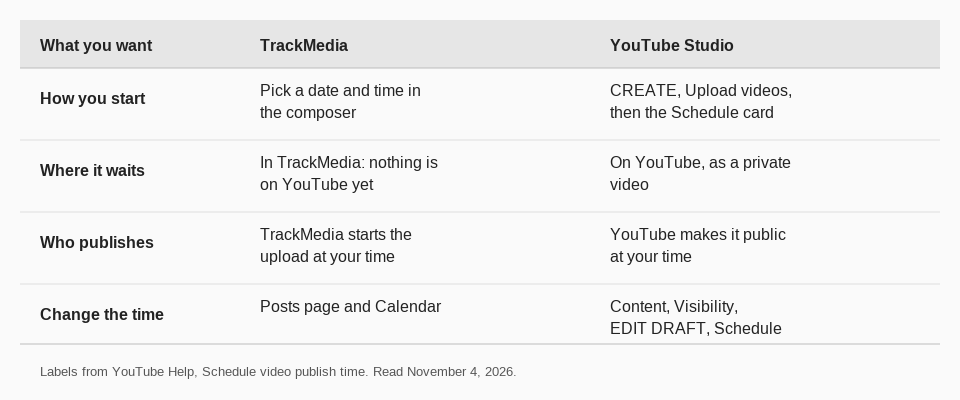
TrackMedia holds the schedule itself and starts the YouTube upload when the time arrives. That differs from Studio, where the video is uploaded first and YouTube publishes it later. We read the code of TrackMedia's YouTube connector on November 4, 2026, and here is what it does:
- Schedules one video per post. A video and a title are required, and the title can be up to 100 characters. You pick the date and time in TrackMedia's composer, or add the post to a queue, and manage it on the Posts page and Calendar.
- Sends the video as public by default. The connector uses public visibility unless a per-network override says otherwise. Check your first upload in YouTube Studio to confirm it looks as you expect.
- Fits the post to YouTube. The composer shows a version for YouTube next to your other networks, with preflight checks, so one draft can also go to the other 20 networks TrackMedia publishes to.
- Lets you add playlists. The composer asks for the channel's playlists when you choose YouTube.
A video scheduled this way does not show in Studio's scheduled list until the upload starts. If an upload fails, the post shows its reason with a retry option. To try it, try TrackMedia free for 14 days, which includes YouTube on every plan.
Questions people also ask
Can you schedule a YouTube video on your phone?
YouTube's scheduling page says "Or use the YouTube app" in both the schedule and edit steps, so yes. The labels are the same as the computer steps: CREATE, Upload videos, the Schedule card, then Schedule.
How do you publish a YouTube video later?
Upload it and use the Schedule card with a date, time and time zone, as in the steps above. The video stays private until that time, then goes public.
Can you change the time of a scheduled video?
Yes. In Studio, go to Content, select the video, open the Visibility dropdown, keep it Private, click EDIT DRAFT and choose the new time under "Schedule". Or set it to Public and select Publish to go out right away.
What happens to a scheduled video if I get a strike?
YouTube says it will not publish during the penalty period. It is set to private for that time and you reschedule it when the freeze ends.
How we checked this
We fetched each page below on November 4, 2026, including the Android and iPhone views of the scheduling page, and copied labels and wording from the page text. We did not schedule a video on a live channel. TrackMedia's behavior comes from reading its YouTube connector and composer code the same day.
- Schedule video publish time (YouTube Help): the steps, edit steps, the strike note and the Pacific time note.
- Change video privacy settings (YouTube Help): what private means and the visibility comparison.
Not covered by these pages: a cancel-schedule button, a limit on how far ahead you can schedule, and any difference between Shorts and long videos. We make no claim on them.