To tag someone on LinkedIn, start a post (or comment on one), type @, begin typing their name and click the right person in the list. LinkedIn calls this a mention. To tag someone in a photo, you use a separate Tag option in the photo editor.
This guide uses LinkedIn's Help pages on mentioning people, tagging people in photos and controlling mentions and tags, read on October 22, 2026. It covers desktop and mobile steps, companies, why a tag will not work, and how to schedule posts that include mentions.
Sources: mentioning people · tagging people in photos · controlling mentions and tags
How to tag someone on LinkedIn in a post
The steps are almost the same on desktop and in the app. LinkedIn's Help page gives these for desktop:
- Start the post. On your LinkedIn homepage, click Start a post. To tag someone in a comment instead, click Comment under someone else's post.
- Type @ and a name. Suggestions appear as you type.
- Click the person's name in the list, then keep writing your message.
- Click Post.
On the mobile app, the page says to tap Post in the navigation bar, tap the At icon on your keyboard, tap the person's name in the list, finish your message and tap Post.
LinkedIn's steps have you click the name in the list, so choose the entry rather than typing the whole name and moving on.
How to tag someone in a LinkedIn photo
A photo tag is a different feature from an @ mention. It puts the person's name on a spot in the picture. LinkedIn's Help page gives these desktop steps:
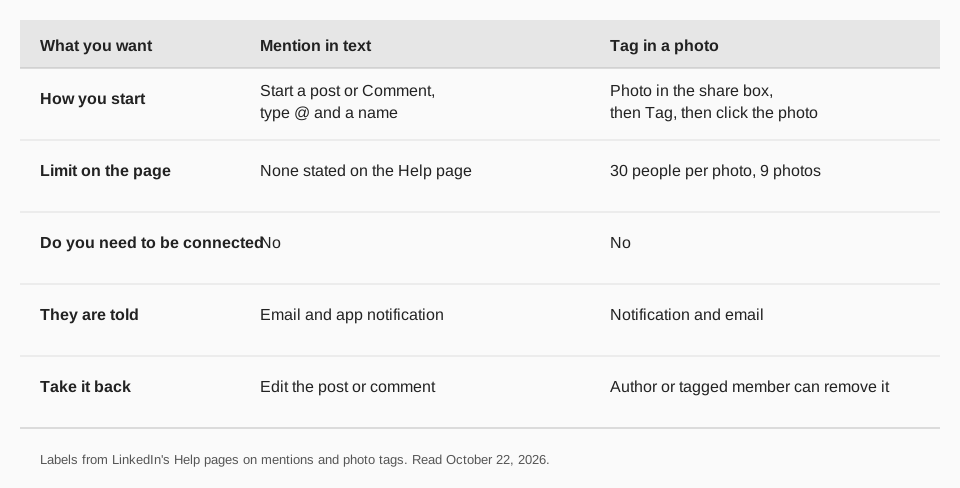
- On your homepage, click Photo in the share box and choose your images (up to nine, each 5 MB or smaller).
- In the Edit your photo window, click Tag, then click the spot in the photo where the person appears.
- Type the member's name and click it. Repeat for more people.
- Click Done to preview, add your text, choose who can see the post and click Post.
On mobile, tap Post, choose your photos, tap the Tag icon, tap the photo, type and tap the name, then tap Next and Post. The Help page allows up to 30 people tagged per photo.
Can you tag a company on LinkedIn?
LinkedIn's mentions page covers only people, and it does not describe how to mention a company. If you need to tag a company page, check how it appears in your own composer, since we did not find a LinkedIn Help page that spells out the steps.
For a common name, LinkedIn's page suggests adding the person's company to your search, for example "Jane Doe" plus the company. That narrows the list to the right Jane Doe.
Can you tag someone in a comment or after posting?
Yes to both. The same @ steps work in a comment, starting from Comment under a post. LinkedIn also says you can edit a post or comment later to add a mention, so a forgotten name is not a reason to delete and repost.
As the author of a photo post, you can remove tags after posting. A tagged member can remove their own tag too.
Why can't I tag someone on LinkedIn?
The documented reasons are few. Work through them in this order:
- They turned mentions off. LinkedIn says some members have mentions switched off, and you are told that member can't be mentioned.
- You are not connected. You don't need to be, but LinkedIn says it may restrict mentions of members you aren't connected with, to keep the platform safe and professional.
- The wrong match. A common name returns many people. Add their company to the search.
- You did not click the entry. The steps have you click the name in the list.
LinkedIn does not publish a reason beyond these, so if none fits, try the other device or edit the post and add the mention again.
How to stop people from tagging you
The setting is called Allow mentions, tags, and collaborations. On desktop, click the Me icon, choose Settings & Privacy, click Visibility, open Mentions, tags, and collaborations under the visibility of your LinkedIn activity, and switch the toggle.
When it is off, members can't collaborate with you on posts or mention or tag you in new posts, comments or photos. Existing mentions and tags are not affected, and the page describes no finer control: it is on or off.
How to tag people in LinkedIn posts with TrackMedia
TrackMedia's composer has a mentions feature, so you can add the person or company to a LinkedIn post while you write it and schedule the post for later. One composer holds a version fitted to LinkedIn and checks it before it goes out, alongside your other networks.
You find a mention by name or by pasting the person's profile link or the company page link, for example linkedin.com/in/jane or linkedin.com/company/acme. Any company page can be mentioned. For people, LinkedIn's API is stricter than the app: a person can be mentioned when they follow the LinkedIn Page you post from and their profile is in English and visible outside LinkedIn.
That makes TrackMedia useful for company pages and for recurring shout-outs to partners, because the mention sits in the queue with the rest of the post. For a quick tag of a personal contact, the LinkedIn app is still the simplest route.
Once the post is live, TrackMedia shows clicks and visitors per post, so you can see whether a mentioned partner's audience sent anyone your way. Our guide to seeing and editing scheduled LinkedIn posts shows where scheduled posts sit, and the free LinkedIn scheduling tool page covers the starting plan. You can start free with TrackMedia.
Once your mentions are in place, see how to find your LinkedIn posts and activity to check how they landed.
Questions people also ask
Do I need to be connected to tag someone on LinkedIn?
No. LinkedIn's Help pages say members don't need to be your connection for you to mention or tag them. LinkedIn may limit mentions of people you aren't connected to.
Does the person get a notification?
Yes. After you publish, the mentioned or tagged person gets an email and an app notification, unless they turned that setting off.
How many people can you tag in one photo?
Up to 30 people per photo, on up to nine photos, according to LinkedIn's photo tagging page. Each photo must be 5 MB or smaller.
Can I tag someone from my phone?
Yes. In the app, tap Post, use the At icon on your keyboard and tap the name in the list. For photos, use the Tag icon.
How we checked this
We opened each page below on October 22, 2026 and copied the labels. We did not test the steps on a live account, and LinkedIn changes these pages, so check the live page if a label looks different. TrackMedia's mention behavior comes from its LinkedIn connector settings.
- Mention people in your posts (LinkedIn Help): desktop and mobile steps, common names, notifications, editing, connection note.
- Tag people in your photos (LinkedIn Help): photo steps and limits.
- Control the visibility of your mentions and tags (LinkedIn Help): the Allow mentions, tags, and collaborations setting.