To turn off cross posting on Instagram, open your profile, tap Menu, then Accounts Center, Connected experiences and Sharing across profiles, and switch off the toggle next to Your Instagram posts. To skip sharing for a single post instead, check that the Facebook toggle under Also share on... is off before you tap Share.
This guide gives the steps in the wording of Meta's help pages, read on October 6, 2026. It covers posts, reels and stories, how to cut the connection entirely, and how this differs from cross-posting through a scheduling tool.
How do you turn off automatic cross posting to Facebook?
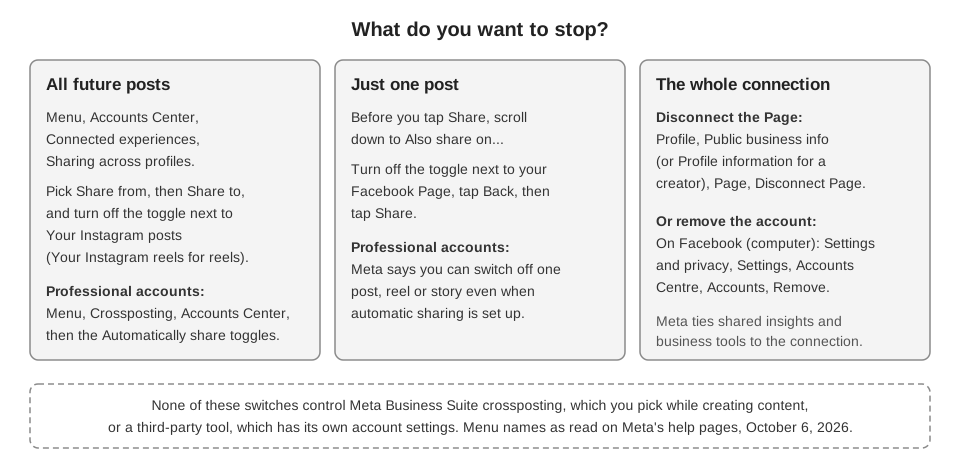
Facebook's Help Centre page Share your Instagram posts to Facebook says you can turn automatic sharing on or off from Accounts Center. When the setting is on, it says, any post you share on Instagram is also shared to Facebook. These are its steps for the Instagram app on Android and iPhone:
- Open your profile. Tap Profile or your profile picture in the bottom right.
- Open the menu. Tap Menu in the top right.
- Go to sharing settings. Tap Accounts Centre, then Connected experiences, then Sharing across profiles. (Instagram's own pages spell it "Accounts Center".)
- Pick the accounts. Tap the account to Share from, then the account to Share to.
- Switch it off. Tap the toggle next to Your Instagram posts.
Meta notes that it is gradually moving people to Meta Accounts, so you may see either "Accounts Centre" or "Meta Account settings" as the place for these settings. Look for the second label if the first is missing.
How do you stop one post from sharing to Facebook?
Before you tap Share on a new post, scroll down to Also share on... and look at the toggle next to your Facebook Page. The same Facebook page describes turning that toggle on to share a post, so a post you share with it off is not sent to Facebook this way. Then tap Back in the top left and tap Share.
For professional accounts, Meta Business Help Centre's page Share posts, stories and reels from a professional Instagram account to a Facebook Page adds a note: you can turn off sharing to Facebook for individual stories, posts or reels, even if you have already set up automatic sharing. The same page also says sharing posts from a personal Instagram account to a Facebook Page is no longer available, while the Facebook page above still refers to a toggle next to your Facebook Page's name. Meta does not reconcile the two, so trust what your own screen shows.
What about reels and stories?
Meta's pages list reels and stories separately from posts, so check each one. Instagram's page Fix problems sharing Instagram reels to Facebook names the reels toggle under Sharing across profiles as Your Instagram reels. Turn that one off, too, if you do not want reels shared.
Meta Business Help Centre describes a second route to the same setting for creator and business profiles, and Instagram's page Share Instagram reels to Facebook gives the same menu path without naming an account type:
- Go to your Instagram creator or business profile and tap Menu in the top right.
- Tap Crossposting, then tap Accounts Center in the crossposting settings. Meta Business Help Centre adds that you tap your Page after Share to Facebook as.
- Below Automatically share, tap the toggle next to each type you no longer want to cross-post: Your Instagram posts, Your Instagram story or Your Instagram reels.
That page also says a story can be shared to Facebook one story at a time: tap your story, tap More, tap Share to Facebook story, then choose Share once or Always share stories. Instagram's page lists a Your Instagram story toggle under Automatically share, but neither page says it undoes Always share stories, so check the result after you switch it off.
What happens to posts that already went to Facebook?
Meta's pages we read do not say. None of them states whether turning sharing off removes earlier copies from Facebook, so assume they stay. Check your Facebook Page or profile and delete any copies there yourself if you want them gone.
How do you disconnect Instagram from Facebook completely?
Switching off a toggle leaves the two accounts linked. To end the link, Meta documents two routes, and which one applies depends on how your accounts are connected.
- Disconnect a Page (professional accounts). Meta Business Help Centre's page Connect or disconnect your professional Instagram account and a Facebook Page says to tap your profile picture, scroll to Public business information (business account) or Profile information (creator account), tap Page, then tap Disconnect Page.
- Remove the account from Accounts Center. Facebook's page Add or remove your accounts and profiles from an Accounts Centre or Meta Account gives these steps on a computer: click your profile picture in Facebook, then Settings and privacy, Settings, Accounts Centre, Accounts, and click Remove. We read only the computer steps for removal.
Weigh the side effects first. The Page page says connecting your accounts enables cross-posting, shared insights and access to Instagram's business tools, so disconnecting is more than a sharing change. It adds that in some cases an active Meta Verified subscription may be cancelled when you disconnect a Page. Meta's page on connected experiences also says that removing an account from an Accounts Center stops its profile picture from syncing. If you only want to stop posts appearing on Facebook, the toggles are the smaller change.
Why is Instagram still sharing to Facebook?
Work through these in order. They come from the pages above.
- A different toggle is still on. Posts and reels have separate toggles in Meta's pages, and professional accounts have an Automatically share section with its own. Check each one under the right Share from account.
- You turned it off on the wrong pair. Sharing is set per Share from and Share to account, so confirm the Instagram account and the Facebook destination match the ones you are using.
- The post came from another tool. Meta Business Suite and scheduling tools publish through their own routes, covered next.
If sharing resumes after you switched it off, recheck the toggles. Instagram's troubleshooting page says you can report a persistent problem from Menu, Help, Report a problem.
How is this different from cross-posting with a tool?
The settings above belong to Meta and live in the Instagram app. Cross-posting that you start somewhere else is a separate choice.
For Business Suite, Meta Business Help Centre's page About cross-posting to Facebook, Instagram and Threads in Meta Business Suite says the option to share to those destinations is available during the content creation process. The page we read describes no standing automatic setting there. Our guide to posting to Instagram and Facebook at the same time covers the on-switch side of all three routes.
One thing we could not verify: whether a post published to Instagram through a tool's connection is also picked up by Meta's automatic sharing when it is on. If you use a tool and also see unexpected Facebook copies, check the Accounts Center toggles first, then the tool.
How does TrackMedia handle cross-posting?
TrackMedia does not control Meta's Accounts Center toggles. Its Instagram and Facebook connectors publish to the accounts you select, and we found no code that reads or sets Meta's "share to Facebook" options, so those switches stay in the Instagram app. Cross-posting in TrackMedia is something you choose yourself:
- In the composer. You pick the accounts for each post, so leaving a Facebook Page unselected means that post does not go there. See how publishing works. Facebook posting is for Pages, not personal profiles.
- In Crosspost rules. New rules start switched off and in review mode, where copies wait as drafts until a person approves them. To stop a rule, pause it with the switch on its card.
One limit applies to rules as of October 6, 2026: only Bluesky works as a source that triggers a rule, so no rule can watch your Instagram posts and copy them to Facebook. For the other direction, see how to automate Instagram posts, and if you also manage queued Facebook posts, how to see and edit scheduled posts on Facebook.
If you would rather choose the destinations for each post yourself, start free with TrackMedia.
How we checked this
We opened each page below in a browser on October 6, 2026 and copied the menu labels from it. We did not change settings on a live Instagram or Facebook account, so we have not confirmed how the toggles behave on screen. Meta's pages show steps by device; we read the Instagram app steps, plus the computer steps for removing an account. Meta moves people between "Accounts Center" and "Meta Account settings", so labels may differ on your screen.
- Facebook Help Centre, Share your Instagram posts to Facebook: Accounts Center steps, Your Instagram posts toggle, Also share on...
- Meta Business Help Centre, Share posts, stories and reels from a professional Instagram account to a Facebook Page: Crossposting menu, Automatically share, per-item opt-out, story options.
- Instagram Help Center, Fix problems sharing Instagram reels to Facebook: Your Instagram reels toggle.
- Instagram Help Center, Share Instagram reels to Facebook: Crossposting, Accounts Center and the Automatically share toggles.
- Meta Business Help Centre, Connect or disconnect your professional Instagram account and a Facebook Page: Disconnect Page steps, what connecting enables and the Meta Verified note.
- Facebook Help Centre, Add or remove your accounts and profiles from an Accounts Centre or Meta Account: Remove steps on a computer.
- Meta Help Center, Connected experiences across your accounts in an Accounts Center: profile picture sync and removal.
- Meta Business Help Centre, About cross-posting to Facebook, Instagram and Threads in Meta Business Suite: crossposting during content creation.
What we could not verify: whether earlier Facebook copies are removed when sharing is turned off, whether a switched-off setting can re-enable itself, how Instagram's story "Always share" option is undone, and whether tool-published posts trigger Meta's automatic sharing. TrackMedia's behavior was read from our own code on the same date: the Crosspost rule editor and the Instagram and Facebook connectors.