An Instagram reel template lets you make a new reel that reuses another reel's music and timing, with your own photos or video clips in place of the originals. In the Instagram app, tap Create, tap Reel, then tap Templates to browse them.
This guide follows Instagram's Help Center pages on templates, read on October 6, 2026 (the iPhone and Android versions of the template-use page match). It covers using, saving and creating a template, what Instagram documents about limits, and what is and is not documented for scheduling or publishing through a tool.
How do Instagram reel templates work?
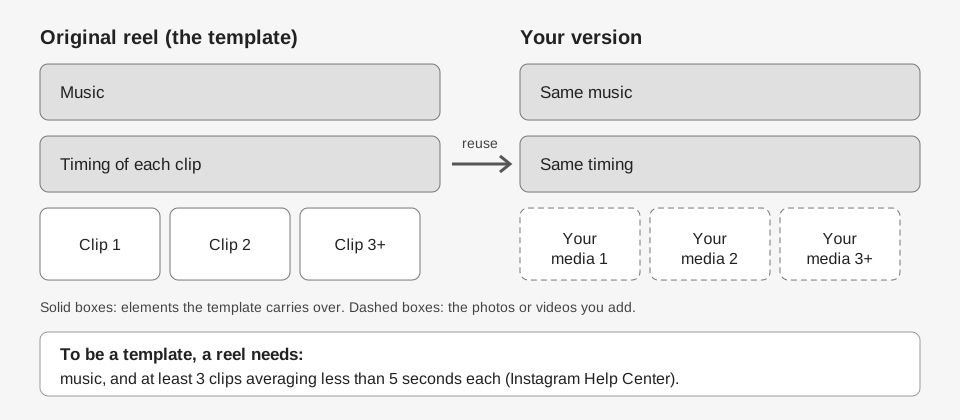
Instagram's Help Center page Use a template to create an Instagram reel says templates "allow you to use the same music and timing as the original reel, and replace the photos or video clips with your own." It also says templates are only available for reels that include music and at least 3 clips.
You find templates, and keep your favorites, in what the page calls the Template Browser. The figure below shows what carries over and what you replace.
How to use an Instagram reel template
Instagram's page gives these steps for making a reel from a template:
- Start a reel. Tap Create at the top or swipe right anywhere in Feed, then tap Reel at the bottom.
- Open the browser. Tap Templates, swipe to browse, and tap the one you want.
- Add your media. Tap Add media, then tap your photos or videos in the order you want them to appear. Tap Next.
- Swap a clip if needed. Tap the clip, tap Replace media, and pick a different photo or video.
- Preview and share. Tap Next to preview, then share.
There is a shortcut. The page says that when you see a reel that offers it, you can tap Template by... and then Use Template. It adds that not all reels can be used as a template.
How to save an Instagram reel template
While browsing, tap Save on any template you want later. Instagram's page Save a reel template on Instagram says your saved templates then appear at the bottom of the browser when you create a reel from a template.
The page does not say how many templates you can save or how long they are kept, so we cannot give you a number.
How to create an Instagram reel template
Instagram's page Create a template for reels on Instagram says a reel you create "may be automatically shared as a template". Templates must have music and at least 3 clips, with an average time of less than 5 seconds per clip. Anyone who uses your reel as a template swaps in their own clips and photos.
- Begin creating a reel.
- Add your clips and music.
- Add any effects you like. Instagram notes that not all effects can be used in a template.
- Tap Next, then tap Share.
If your profile is private, only your followers can use your reel as a template. The separate Record a reel page mentions that More options, on the final screen before sharing, includes allowing your reel to be used as a template. The two pages describe the setting differently: the Create page says a reel "may be automatically shared as a template", while the Record a reel page lists allowing your reel to be used as a template among the options under More options. Instagram does not say which applies to your account or whether the option is on by default, so open More options and check before you share.
Templates made in Edits
Instagram's Create a template from a video made on Edits page describes a second route. After you export a video to Instagram, switch on Share as template before you tap Share. Instagram says you can turn this on or off every time you export.
- Reusable clips. In your project, tap New project, choose Template settings, and select up to 10 clips others may reuse.
- Credit. Your username appears on templates you create and on reels made from them.
- Where they are used. The page says templates may appear on Instagram or Edits, and that people using them "will only be able to create with them on Edits."
- Deleting. If you delete a template, all reels created with it are deleted too. To stop sharing one, tap Turn off reuse and template on the published reel.
Are reel templates the same as Add Yours templates?
No. Instagram's help pages describe three different things that use the word "template":
| Type | Where you make it | What others reuse |
|---|---|---|
| Reel template | Reel editor in the Instagram app | Music, clip length and other elements |
| Edits template | Edits app, Share as template | The same, plus up to 10 clips you allow |
| Add Yours Template | A story, with the Add Yours Template sticker | GIFs, text or images you pin |
The Add Yours Template page covers stories only, so this guide does not go further into it.
Can you schedule or publish a reel template with a tool?
Instagram does not document it. Its scheduling page says that if you have a public account you can schedule reels from the app (Create, Reel, More options, Schedule this reel). It lists product tagging, collaborative posts, sponsored posts and fundraisers as incompatible with scheduled content, and does not mention templates in either direction. So we cannot say whether a reel built from a template can be scheduled in the app.
For tools, Meta's IG User Media reference (marked updated September 28, 2026) lists these parameters for a standard Reel upload: media_type=REELS, video_url, caption, share_to_feed, collaborators, cover_url, audio_name, user_tags, location_id, thumb_offset and trial_params. None of them selects or applies a template, and Meta's Content Publishing guide does not mention templates. Our reading is that building from a template is an in-app step.
What TrackMedia does for Reels
TrackMedia has no feature for browsing, saving or applying Instagram reel templates. It can request an Instagram Reel only through its API or a per-target override, and the web composer has no Reel option. For reels, the practical routine is to build and review the template reel in the Instagram app, and use TrackMedia for the rest of your Instagram queue.
That means images and carousels of up to 10 items, kept in one queue with your other networks. How publishing works in TrackMedia has the detail, how to automate Instagram posts explains what Instagram's API allows, and how to see scheduled posts on Instagram shows where scheduled content lives. We did not test whether an exported template reel publishes through the API, so we make no promise there. For length, size and ratio rules before you export, see how long an Instagram Reel can be.
If you want your images and carousels in one queue, you can start free with TrackMedia.
How we checked this
We opened each page below in a browser on October 6, 2026 and copied menu labels and numbers from it. Instagram's pages for these features are device-gated, so we read the iPhone app versions, and also the Android version of the template-use page, which was identical. We did not test templates on a live Instagram account, and Instagram changes its menus, so check the live page if a label looks different.
- Use a template to create an Instagram reel (Instagram Help Center): requirements, steps, Template Browser, Template by... shortcut.
- Save a reel template on Instagram (Instagram Help Center): saving and where saved templates appear.
- Create a template for reels on Instagram (Instagram Help Center): 3 clips, under 5 seconds average, music, private-profile note.
- Create a template from a video made on Edits (Instagram Help Center): Share as template, 10 reusable clips, credit and deletion.
- Add Yours Template on Instagram (Instagram Help Center): story-only template sticker.
- Record a reel on Instagram and How to create and manage scheduled posts and Reels on Instagram (Instagram Help Center): the template option under More options, and scheduling steps and incompatible features.
- IG User Media and Content Publishing (Meta for Developers): Reel container parameters; no template parameter listed.
What we could not verify: whether a template reel can be scheduled in the app, how many templates you can save, what decides whether a reel is shared as a template, which effects are excluded, and whether account type changes any of this. Instagram's pages do not say. TrackMedia's own behavior comes from its Instagram connector code, read the same day.