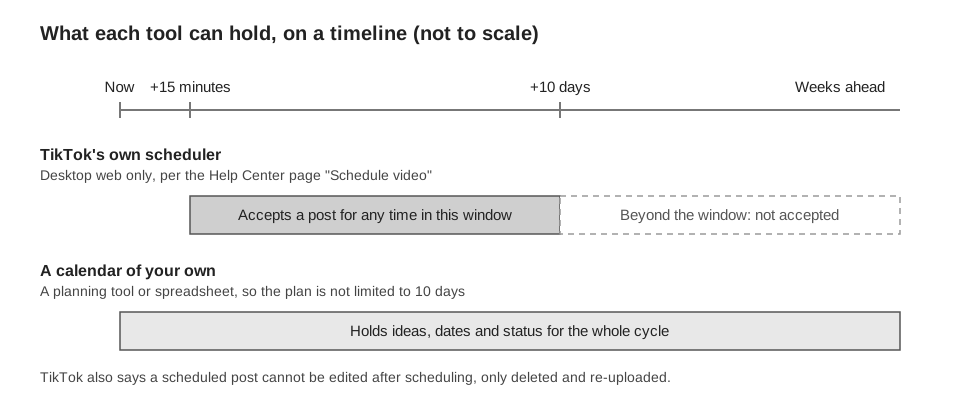
A TikTok content calendar is a dated plan of what you will post, kept somewhere that can hold more than TikTok's own scheduler does. TikTok's Help Center says its desktop scheduler accepts a post from 15 minutes to 10 days ahead, so a month-long plan has to live in a calendar of your own.
This guide covers what TikTok schedules natively, a planning cycle you can repeat, how to find your own posting times, and how the TrackMedia calendar works. We read TikTok's pages and TrackMedia's code on October 6, 2026, and mark our own opinions as opinions.
What can TikTok schedule on its own?
TikTok has a native scheduler for desktop web. The limits below come from TikTok's Help Center page "Schedule video" and TikTok for Business's Video Scheduler announcement, as of October 2026.
| Item | What TikTok says | Source |
|---|---|---|
| How far ahead | At least 15 minutes and at most 10 days before publishing | Help Center, TikTok for Business |
| Where | TikTok on desktop web. Not available on TikTok mobile web | Help Center |
| Who | Help Center: a Business Account, or 10,000 followers or more (the wording is awkward). TikTok for Business: introduces the feature for "creators and Business Accounts", then says you will need a Business Account | Help Center, TikTok for Business |
| Editing | A scheduled post cannot be edited, but it can be deleted and re-uploaded | Help Center, TikTok for Business |
| Where you see it | In your Profile view. TikTok for Business adds "alongside drafts" | Help Center, TikTok for Business |
| Time zone | Defaults to your computer's setting | Help Center |
The two TikTok pages disagree on who qualifies, so check your own upload screen. TikTok's "Tools for creators" page lists "Upload, schedule, and edit posts" among the things you can do with TikTok Studio, and says creator tools are available for Personal and Business Accounts. It also says tool availability varies across the app and web experiences and that certain features require you to meet specific criteria, without saying which features. The pages we read give no steps for scheduling in the mobile app, so we give none.
Whether scheduling changes how many people see a video is a separate question, covered in does scheduling a post on TikTok affect views.
How does a TikTok content calendar planning cycle work?
A planning cycle is a fixed rhythm of review, plan, make and publish. This is our method, not a TikTok recommendation. A two-week or four-week cycle suits most accounts, but pick the length you will actually keep.
- Review the last cycle. Open TikTok Studio's analytics and note which posts did best on the metric you care about, such as views or followers gained.
- Decide the slots. Choose how many posts the cycle holds and which days and times they take. Mark the slots in your calendar before you have ideas to fill them.
- Park ideas without dates. Keep a list of rough ideas that are not yet tied to a day.
- Fill the slots. Move ideas into slots, and leave one or two slots open for something timely.
- Make videos in a batch. A TikTok post needs media, so a slot is not ready until the video file exists.
- Hand off and adjust. Schedule each video natively once its date is within 10 days, or let a tool hold the schedule. Move posts as the cycle changes, then start the next review.
How do you choose posting times for your TikTok planner?
Use your own account's data, because none of the TikTok pages we read publish a universal best time. TikTok's TikTok Studio help page says account analytics have Overview, Content, Viewers and Followers sections, and that Viewers shows "Key metrics, demographics, and activity times of your viewers".
Start there, then test. Our suggestion is to post in two or three different time windows over a cycle and compare results per post. Our guide to checking TikTok analytics walks through the reports. Treat any number from a third party that claims a best time for every account as a guess.
How often should you post?
None of the TikTok pages we read give a recommended posting frequency, so the following is our opinion, not TikTok's guidance. Pick a number you can sustain for a whole cycle, because a calendar you abandon in week two is worse than a light one you keep.
- Start with fewer slots than you think you can fill, and add one only after you hit the plan for a full cycle.
- Spread slots across the week instead of stacking them on one day, so a missed shoot costs one slot.
How does the TrackMedia calendar work?
TrackMedia's Calendar page shows everything scheduled and published, in your workspace's time zone, and it is built for the planning steps above. Here is what the code does today:
- Month and Week views. Switch with the Month and Week tabs, step with the arrows, and jump back with Today. Month weeks start on Monday and show three posts per day, then "+N more". Click a date to see everything due that day.
- Week grid. Rows run hourly from 06:00 to 23:00, and each post appears in the hour it is due.
- Filters. Narrow the grid by status and by account. Each post shows its time, a short excerpt, a status mark and up to two channel icons.
- Drag to reschedule. Only Draft and Scheduled posts can be dragged. In the month view a drop keeps the post's time of day. In the week view the post lands on the hour you drop it on, at :00. If TrackMedia refuses the new time, the post returns to its old day and an error shows. TrackMedia rejects times in the past.
- Ideas tray. Drafts saved without a date wait in an Ideas list beside the grid. Drag one onto a day to schedule it. It takes the current time of day, so check the time afterward.
- Quick create. The + on a day opens a dialog with date, time, accounts and optional text for the post, and an option to open the full editor after creating.
One limit for TikTok: the quick-create dialog cannot attach media. It creates the post with no media, TrackMedia checks every new post against the rules of each selected account, and the TikTok rules require a video or photos. A TikTok quick-create is therefore refused, with a message that the platform cannot post text on its own, and the calendar shows "Could not create this post". We read this in the code and have not run it in the app. Start TikTok posts from New post instead, attach the video, and save them as undated drafts so they wait in the Ideas list.
TrackMedia holds the schedule itself and publishes at the time you chose, so these posts do not appear in TikTok's own scheduled list. TikTok's Direct Post reference (updated August 24, 2026) has no scheduling or publish-time field that we could find, which fits that design. In the composer you choose Post to TikTok or Send to TikTok inbox as a draft, and TikTok supplies the visibility options per account. TikTok's Content Sharing Guidelines (updated August 4, 2026) say unaudited API clients can only post with private viewership ("SELF_ONLY"), and that every account posting through such a client must be set to private at the time. They also describe a limit on Direct Post posts to a creator account in a 24-hour window, typically around 15 posts per day. We cannot say whether TikTok has audited this deployment. See how publishing works in TrackMedia.
For the review step, the Best times tab in TrackMedia's analytics averages engagement by publish hour and ranks only slots with at least 3 posts behind them. If you manage several brands, our guide to managing multiple social media accounts covers workspaces. When you want one calendar for every slot, start free with TrackMedia.
How we checked this
We opened each page below in a browser on October 6, 2026, including the TikTok for Business and TikTok for Developers pages, and compared the numbers and wording with this post. We did not test scheduling on a live TikTok account, and we did not run TrackMedia's calendar with a TikTok account. TrackMedia behavior comes from the calendar, post-creation and TikTok connector code in our repository, read the same day.
- TikTok Help Center, "Schedule video": https://www.tiktok.com/support/faq_detail?id=7078299678101477893
- TikTok Help Center, "Tools for creators": https://www.tiktok.com/support/faq_detail?id=7581820704895703564
- TikTok Help Center, "TikTok Studio": https://www.tiktok.com/support/faq_detail?id=7581820705491229240
- TikTok for Business Blog, "Video Scheduler: Plan TikTok Videos In Advance!" (no date on the page): https://ads.tiktok.com/business/en-US/blog/introducing-video-scheduler-now-you-can-plan-tiktoks-in-advance
- TikTok for Developers, "Direct Post" reference (updated August 24, 2026): https://developers.tiktok.com/docs/en/content-posting-api-reference-direct-post
- TikTok for Developers, "Content Sharing Guidelines" (updated August 4, 2026): https://developers.tiktok.com/docs/en/content-sharing-guidelines
Not verified: steps for scheduling in the TikTok mobile app, which account types qualify for desktop scheduling (TikTok's pages differ), and whether TikTok recommends a posting frequency. The TikTok quick-create refusal comes from reading the code, not from running it. The cadence advice is our opinion.