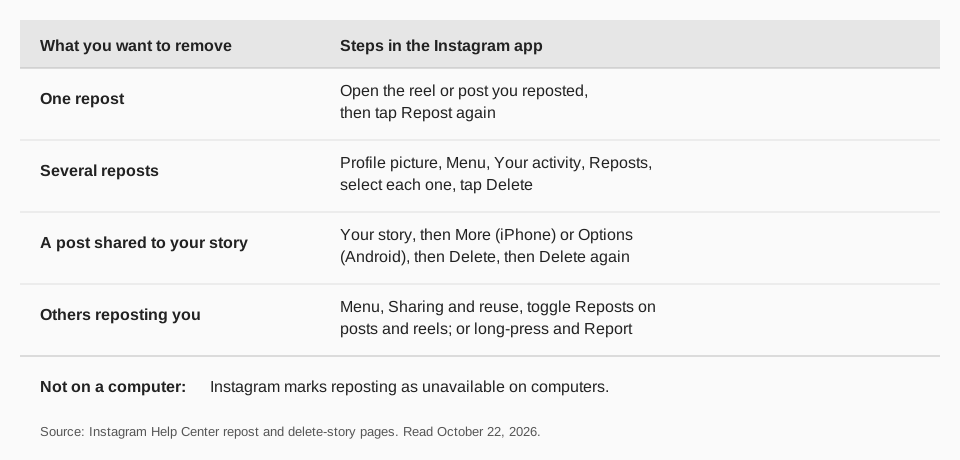
To unrepost on Instagram, open the reel or post you reposted and tap Repost again. Instagram's Help Center says that removes the repost. To remove several at once, go to your profile, tap Menu, then Your activity, then Reposts, select each one and tap Delete.
This guide follows Instagram's page on reposting a reel or a post, read on October 22, 2026, in its iPhone and Android versions. It also covers finding your reposts, undoing a story share instead, what you can and cannot do about other people reposting you, and what Instagram's pages leave unsaid.
How to unrepost on Instagram, step by step
There are two routes, and both are in the iPhone and Android apps. Instagram marks reposting as not available on computers, so there is no web version of these steps.
Unrepost a single reel or post
- Open the reel or post you reposted. To find it, see the next section.
- Tap Repost on it again.
That is all Instagram's page says: you can remove a repost by tapping Repost on the reel or post you reposted. It does not describe a confirmation pop-up, so go by what your screen shows.
Delete several reposts at once
Instagram's page calls this managing or bulk deleting your reposts:
- Open the Instagram app and tap your profile picture in the bottom right.
- Tap Menu in the top right.
- Tap Your activity, then Reposts.
- Select each reel or post you want to remove. You can tap one to view it first.
- Tap Delete.
This is the fastest way to clear a profile of reposts you no longer want, for example before you rebrand an account.
Where are my reposts on Instagram?
On your profile. Instagram says reposts appear in a dedicated repost tab on your profile, and that a repost is available in the Reposts section of your profile. To get there, open the app, tap your profile picture in the bottom right, then tap the dedicated tab on your profile. The page does not name the tab's icon, so look for the tab that holds content from other creators.
The Your activity, Reposts screen is the other place. It is the one that lets you remove many at once. The same page adds that you can access and download your information, including reposts.
How to remove a post you shared to your story
Resharing a Feed post to your story is a different feature from Repost, and it is removed differently. Instagram's page on sharing someone's post to your story gives the sharing steps (Share, Add to story, Next, Share) but not a separate removal step, because a shared post is an ordinary story. Delete it as you would any story. Instagram's page on deleting your story gives these steps for the iPhone:
- Go to your story by tapping Your story at the top of Feed.
- Tap More in the bottom right of the photo or video you want to delete.
- Tap Delete story and then tap Delete again.
On Android, the page says to tap Options in the bottom right, then Delete, then Delete again. If you also shared the story to Facebook, you can tap Delete from both or Delete from Instagram only.
Remember that stories expire on their own. Instagram says photos and videos shared to your story disappear after 24 hours unless you add them to a highlight, so deleting only matters if you do not want to wait.
Sources: sharing someone's post to your story · page on deleting your story
Can you remove someone else's repost of your content?
Instagram's page gives you two tools, and neither deletes a specific repost on request. You can stop future reposts, and you can report a repost.
- Block reposts going forward. Tap your profile picture, then Menu, then Sharing and reuse below How others can interact with you, and tap the toggle next to Reposts on posts and reels. The page describes the toggle as the way to choose whether or not to allow reposts of your content. It does not say whether switching it off removes existing reposts.
- Report a repost. Long-press the profile picture of the repost at the bottom left of the reel or post, tap Report and follow the on-screen instructions.
To find out whether people can see who shared you, read how to see who reposted your Instagram post. Instagram's story resharing page says you cannot see who reshared your reel to a story.
What happens to comments and the original post after you unrepost?
Instagram's page is short on aftermath, so here is what it does and does not say:
- Comments. The page says comments on your repost appear as direct messages to you. It does not say what happens to those messages when you remove the repost.
- The original. Removing a repost removes your share. Nothing on the page suggests it affects the original creator's reel or post.
- Deleted content rules. Instagram's page on what happens to content you delete covers photos, videos, stories, direct messages, notes and reels, and says deleted content moves to Recently Deleted for up to 30 days. It does not list reposts, so we do not claim reposts are restorable that way.
- Re-reposting. The page does not say you cannot repost the same reel again after removing it, so go by what the app lets you do. Whether the creator still allows reposts matters, as always.
Sources: what happens to content you delete
Why can't I unrepost on Instagram?
Instagram does not list reasons, but these follow from its page:
- You are on a computer. The feature is marked as not available on computers, so use the iPhone or Android app.
- The feature is not available to you. The page says it may not be available to everyone.
- You are looking at the wrong thing. If the item is in a story, it is a story share, not a repost. Delete the story.
- The item is not in your repost tab. Open Menu, Your activity, Reposts and look there. That screen lists your reposts and has its own Delete button.
Should you unrepost, or just leave it?
That depends on what the repost does for your profile. Instagram says reposts appear in their own tab and that your followers may see them in their feeds. Content from other creators therefore sits on your profile next to your own work. If you are building a profile around your own posts, removing old reposts keeps the message clear.
If you reposted a creator's work to credit or support them, there is no harm in leaving it, as long as they still allow reposts. If they switch reposts off later, Instagram's page does not say what happens to existing ones, so do not assume yours stays or goes.
Before a bulk delete, open the Reposts screen and view each item, since Instagram lets you tap one to see it first. Our guide to planning an Instagram content calendar shows how to fill the space with content you publish yourself.
How to keep your Instagram profile tidy with TrackMedia
Instagram's Repost feature lives inside the app, and TrackMedia does not repost for you. What it does is keep the posts you publish yourself organized, so your profile is made of content you chose and can measure.
- Plan your own posts. Use the calendar and queues to schedule Instagram posts, Reels and carousels alongside 20 other networks, with a version fitted to each network and preflight checks.
- Credit collaborators in captions. Add a mention with their handle, so a feature of another creator is tagged in your own post, with their permission.
- See results per post. TrackMedia reads views, reach, saves and shares for each Instagram post, so you can tell what is worth keeping. Our guide to Instagram analytics tools compares ways to do this.
- Measure clicks. Add a tracked link with UTM tags to a caption and see clicks and visitors per post. See how to see who clicked your Instagram link.
You can also read how to repost a reel on Instagram to start. Start free with TrackMedia; no card needed.
Questions people also ask
How do I unrepost on Instagram?
Tap Repost again on the reel or post you reposted. To remove many, go to Menu, Your activity, Reposts, select them and tap Delete.
Where do I find my reposts on Instagram?
In the dedicated tab on your profile, or in Menu, Your activity, Reposts.
Can I undo a repost on a computer?
Instagram's page marks reposting as not available on computers, so use the iPhone or Android app.
How do I stop others from reposting my content?
Go to Menu, Sharing and reuse, and use the toggle next to Reposts on posts and reels.
How we checked this
We opened each page below in a browser on October 22, 2026 and read the full text. For the repost page we read the iPhone and Android versions, which gave the same steps.
- Repost a reel or a post on Instagram (Instagram Help Center): removing, finding, bulk deleting, allowing and reporting reposts.
- Share someone's post from feed to your Instagram story (Instagram Help Center).
- Delete your Instagram story (Instagram Help Center): iPhone and Android steps.
- What happens to content you delete on Instagram (Instagram Help Center).
TrackMedia's behavior comes from reading its Instagram connector the same day. Instagram changes its app often, so check the live page if a label differs.