Social media team management comes down to three decisions: who controls access to each account, who can create and publish, and who can only read results. Give every person their own login or invitation, assign the lowest role that does their job, and keep at least two people who can manage access so one departure cannot lock you out.
Facebook, LinkedIn and YouTube each name their roles differently, so this guide reads each platform's own help page and then shows how TrackMedia's workspaces and roles fit around them. Platform facts are as of October 2026.
What does social media team management need decided first?
Answer four questions before opening any settings page. Who owns each account and can add or remove people? Who writes and publishes? Who only needs to look at the calendar or the numbers, such as a client or a manager? Who checks a post before it goes out?
The first three map onto platform roles, covered next. The fourth is a habit rather than a setting; our guide to a social media approval workflow shows how to build one from drafts and roles. For the groundwork before roles, such as listing and naming every account, see our guide to managing multiple social media accounts.
How do roles work on Facebook Pages and Meta Business Suite?
Facebook's Help Centre page About Facebook Page access describes three kinds of access: Facebook access (with full or partial control), task access, and Community Manager access. Task access lets people manage a Page from tools such as Meta Business Suite or Ads Manager, but not switch into the Page on Facebook itself. The page lists content, messages and community activity, ads and insights as what task access can manage.
Full control is the level to ration. The same page says giving someone Facebook access with full control gives them the same access as you, including removing anyone from the Page (you included) or deleting it. It also says a Page must keep at least one person with full control, or it is deactivated and scheduled for deletion. The companion page, Give, edit or remove Facebook Page access, says you need full control to add, edit or remove someone's access, and that you must switch into the Page to do it.
If the Page sits inside a business portfolio, the rules shift. Meta's About business portfolio and business asset permissions page describes two levels, full control and partial access. Basic access is the default when you add someone to a portfolio, and it lets them work only on the assets they are assigned. The page also describes temporary access, from a minimum of 3 days to a maximum of 75 days, after which the person is removed from the portfolio and its assigned assets.
One thing we could not confirm: the Meta pages we read do not name a read-only role. Insights appears in the task list, but we did not verify whether a person can be limited to insights alone, so check the assignment screen in your own account. For finding and changing scheduled posts in these tools, see how to see and edit scheduled posts on Facebook.
What are the LinkedIn Page admin roles?
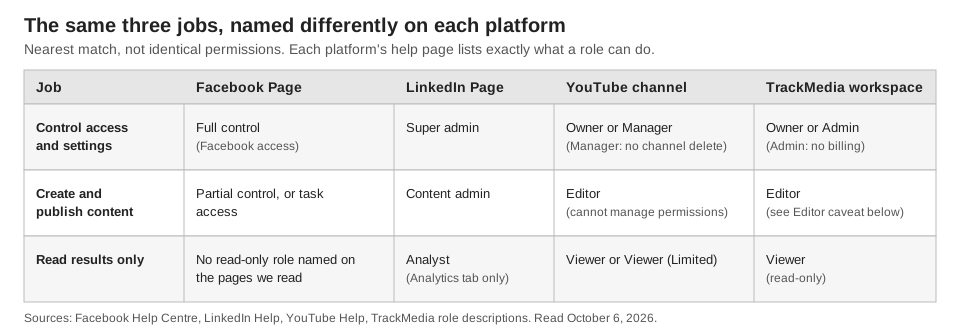
LinkedIn's Help page LinkedIn Page admin roles lists three Page admin roles, plus separate paid media admin roles for ads. A Super admin has every Page admin permission, including adding and removing any type of admin and deactivating the Page. A Content admin can create and manage Page content, including posts and events. An Analyst can monitor performance through analytics, and the Analytics tab is their main landing page. LinkedIn adds that analysts have limited access to the Page in third-party tools.
Per LinkedIn's Add admins on your LinkedIn Page page, only a super admin can add admins. The path is your Page super admin view, then Settings, then Manage admins, then Add admin. Only one Page admin role can be assigned per person. LinkedIn says you can add someone only if they are a 1st-, 2nd- or 3rd-degree connection who follows the Page, and that you may reach a limit on how many admins a Page can have.
What are YouTube channel permissions?
YouTube's Help page Add or remove access to your YouTube channel with channel permissions says people can manage a channel without needing access to your Google Account, which it calls safer than sharing a password. The page's intro mentions five levels, but its role table lists seven: Owner, Manager, Editor, Editor (Limited), Subtitle Editor, Viewer and Viewer (Limited).
The distinctions that matter for a team: a Manager can manage permissions but cannot delete the channel. An Editor can upload and publish content but cannot manage permissions and cannot delete published content. A Viewer can view channel details but not edit them.
To invite someone, sign in to YouTube Studio, click Settings, then Permissions, then Invite, enter the email address, and choose the role under Access. YouTube says an invite expires after 30 days. The same page also says invited users cannot access YouTube APIs. We did not test whether that affects connecting a channel to a scheduling tool, so have the channel owner make that connection until you have checked.
How do these roles line up?
The names differ, but the jobs repeat: one tier controls access, one publishes, one reads. The grid below shows the nearest match on each platform.
How do you assign roles to a small team?
This sequence is our advice, not a platform requirement.
- Name two people who can manage access on each account. One person is a single point of failure. Meta requires a Page to keep at least one person with full control, and YouTube's table says the Owner cannot transfer ownership, so on YouTube the second person is a Manager.
- Give writers the publishing role. Content admin, Editor or task access is enough for day-to-day posting.
- Give clients and stakeholders the read-only role. Where a platform has none, send them a report instead of access.
- Use time limits for contractors where they exist. Meta's portfolio temporary access runs 3 to 75 days and then removes the person. The YouTube and LinkedIn pages we read describe no expiry for access once granted (YouTube invites expire after 30 days if not accepted), so put a removal date in your calendar.
- Remove access the day someone leaves, on every platform's people list.
How do workspaces and roles work in TrackMedia?
TrackMedia groups accounts into workspaces, usually one per brand or client, and the workspace switcher shows your role next to each name. Every member has one of four roles. The invite dialog and the Team page show the Admin, Editor and Viewer descriptions below (Owner cannot be assigned there), taken from role-descriptions.ts in TrackMedia's code. The right-hand column is what the API code checks.
| Role | What the app says it can do | What the API checks |
|---|---|---|
| Owner | Everything, including billing and deleting the workspace | Only an Owner can delete a workspace |
| Admin | Everything except billing: connect accounts, manage keys, invite people | Owners and Admins can invite, change roles and remove members |
| Editor | Write, schedule and publish posts; cannot change accounts or keys | Passes the shared write check, which also covers the account endpoints (see below) |
| Viewer | Read-only: sees the calendar, posts and analytics | Requests that need a write scope are refused |
To add someone, an Owner or Admin opens the team page and chooses Invite someone, enters an email and picks a role. The dialog defaults to Editor, and the invite link expires after 7 days if unused. Only Owners and Admins can invite, and the last Owner cannot be demoted or removed, so a workspace is never left without one.
These roles control what people can do inside TrackMedia. They are separate from the Facebook, LinkedIn and YouTube roles above, so you still manage access on each platform. TrackMedia's composer keeps one master draft with per-network edits, and our weekly social media management workflow covers the routine once roles are set.
What does TrackMedia not do for teams?
TrackMedia has no approval gate. Nothing stops an Editor from scheduling or publishing a post, so review is a team habit built on drafts. The composer has its own button to save a draft, and a post can be edited while it is a Draft or Scheduled. A practical rule: writers save drafts, a named reviewer checks the preview and each account's readiness check, then someone schedules.
A second limit concerns the Editor role. The Team page describes Editors as unable to change accounts or keys. In the code we read on October 6, 2026, the shared role check on API requests only separates read-only roles from roles that can write (scopes.plugin.ts, tenant.ts), and the account endpoints use that same write check. The API-key endpoints declare no scope at all, so that check does not run on them. We found no separate Editor-only block on either set of endpoints, and we did not test a running workspace. Check this in a trial workspace before you rely on the Team page text, and until you have, give Editor only to people you would trust with account connections and API keys.
When your roles are settled, you can start free at TrackMedia, create a workspace and invite your team.
How we checked this
We opened each page below in a browser on October 6, 2026. Platform claims come only from these pages. TrackMedia claims come from reading TrackMedia's own code (role-descriptions.ts, teams.service.ts, scopes.plugin.ts, tenant.ts, plus the account, API-key and team route files and the invite dialog), not from running the product.
- Facebook Help Centre, About Facebook Page access: access types and the full-control rule.
- Facebook Help Centre, Give, edit or remove Facebook Page access: full control is needed to change access, and you must switch into the Page. Its step-by-step sections are collapsed and we did not rely on them.
- Meta Business Help Centre, About business portfolio and business asset permissions in Meta Business Suite: full control, partial access, basic access, temporary access (3 to 75 days).
- LinkedIn Help, LinkedIn Page admin roles and Add admins on your LinkedIn Page: roles and the Manage admins path.
- YouTube Help, Add or remove access to your YouTube channel with channel permissions: roles, invite steps, 30-day expiry, API note.
What we could not verify: a read-only role on Facebook Pages, the exact steps for giving task access (the section is collapsed on the page), any Instagram-specific role page, whether a YouTube delegate can connect a channel to a scheduling tool, and how the Editor role behaves in a running TrackMedia workspace, since we only read the code.