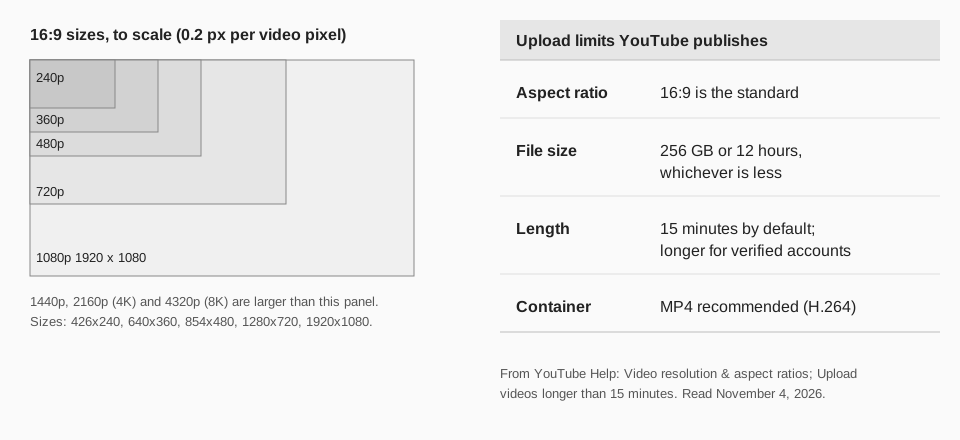
The standard YouTube video size is a 16:9 aspect ratio, encoded at dimensions such as 1920 x 1080 for 1080p or 3840 x 2160 for 4K. The largest file you can upload is 256 GB or 12 hours, whichever is less, and accounts that are not verified can upload videos up to 15 minutes long.
Both limits come from YouTube Help pages we read on November 4, 2026. This guide lists the resolutions YouTube names, the file types it accepts, the encoding settings it recommends and what to do when your video is the wrong shape.
What are the YouTube video dimensions?
YouTube's Video resolution & aspect ratios page says: "For the default 16:9 aspect ratio, encode at these resolutions." It then lists them:
| Name | Dimensions |
|---|---|
| 4320p (8K) | 7680 x 4320 |
| 2160p (4K) | 3840 x 2160 |
| 1440p (2K) | 2560 x 1440 |
| 1080p (HD) | 1920 x 1080 |
| 720p (HD) | 1280 x 720 |
| 480p (SD) | 854 x 480 |
| 360p (SD) | 640 x 360 |
| 240p (SD) | 426 x 240 |
The page adds a warning about sizes in between: "In 2022, we started removing support for playback at resolutions between 4K and 8K. For example, we may no longer support playback at 5K." If you shoot at an in-between size, export at one of the sizes in the table.
On the upload page, YouTube adds: "Your video will be converted to the highest resolution available to ensure successful playback on different devices and networks."
Sources: Video resolution & aspect ratios
What aspect ratio should a YouTube video be?
For a computer, 16:9. YouTube says: "The standard aspect ratio for YouTube on a computer is 16:9. If your video has a different aspect ratio, the player will automatically change to the ideal size to match your video and the viewer's device."
That means a square or vertical video still plays. The same page notes that for some combinations, "like 9:16 vertical videos on computer browsers, YouTube may add more padding for optimal viewing. The padding is white by default, and dark gray when Dark theme is turned on."
The advice that follows is the part people miss: "For best results, avoid adding padding or black bars directly to your video. Padding interferes with YouTube's ability to change the player dynamically to your video size and the viewer's device." Export at the shape you filmed, with no bars.
What is the YouTube video file size limit?
YouTube's Upload videos longer than 15 minutes page states the ceiling: "The maximum file size you can upload is 256 GB or 12 hours, whichever is less." It adds that "we've changed the limits on uploads in the past, so you may see older videos that are longer than 12 hours."
Length is a separate rule. "By default, you can upload videos that are up to 15 minutes long. Verified accounts can upload videos longer than 15 minutes." To verify, YouTube sends you to youtube.com/verify on a computer, where you get a code by text message or an automated voice call. The page also says to use an up-to-date browser for files larger than 20 GB.
If a file is over 256 GB, the page's advice is to "try compressing your video in a video editing software before uploading it to YouTube. Use the H.264 codec to compress your video file size while maintaining the video quality for YouTube."
Sources: Upload videos longer than 15 minutes
Which file types does YouTube accept?
YouTube's Supported YouTube file formats page lists these: .MOV, .MPEG-1, .MPEG-2, .MPEG4, .MP4, .MPG, .AVI, .WMV, .MPEGPS, .FLV, 3GPP, WebM, DNxHR, ProRes, CineForm and HEVC (H.265). Audio files such as MP3, WAV or PCM cannot be uploaded to create a video. Convert them to a video first.
If you see an "invalid file format" message, check your file against that list. MP4 is the format YouTube names in its encoding recommendations.
Sources: Supported YouTube file formats
What encoding settings does YouTube recommend?
These come from YouTube recommended upload encoding settings. The page opens with a note that its features are for partners who use YouTube Studio Content Manager, but the settings are YouTube's own recommendations for uploads, so they are a sound target for any channel.
- Container: MP4, with no edit lists and the moov atom at the front of the file (Fast Start).
- Video codec: H.264, progressive scan, High Profile, chroma subsampling 4:2:0.
- Audio codec: AAC-LC, Opus or Eclipsa Audio, with a 48 kHz sample rate.
- Frame rate: "Content should be encoded and uploaded in the same frame rate it was recorded." Common rates are 24, 25, 30, 48, 50 and 60 frames per second.
- Interlaced footage: deinterlace before you upload. For example, 1080i60 should become 1080p30.
For bitrate, the page says "No bitrate limit is required, though we offer recommended bit rates below for reference." These are its recommended video bitrates for SDR uploads:
| Resolution | 24, 25, 30 fps | 48, 50, 60 fps |
|---|---|---|
| 8K | 80 to 160 Mbps | 120 to 240 Mbps |
| 2160p (4K) | 35 to 45 Mbps | 53 to 68 Mbps |
| 1440p (2K) | 16 Mbps | 24 Mbps |
| 1080p | 8 Mbps | 12 Mbps |
| 720p | 5 Mbps | 7.5 Mbps |
| 480p | 2.5 Mbps | 4 Mbps |
| 360p | 1 Mbps | 1.5 Mbps |
The page lists separate, higher HDR bitrates and says HDR is not supported at 480p or 360p. For audio it recommends 128 kbps for mono, 384 kbps for stereo and 512 kbps for 5.1. It also says to view new 4K uploads in 4K, "use a browser or device that supports VP9."
Sources: YouTube recommended upload encoding settings
Why does my YouTube video have black bars or look low quality?
- Bars on the sides or top. The file's shape does not match the player. Export at the shape you filmed and leave out any bars you added in the editor.
- White or gray padding around a vertical video on a computer. That is YouTube's own padding for 9:16 video, as quoted above. It is not part of your file.
- Soft picture right after upload. YouTube says processing time "can depend on a number of factors including quality, video length, video format, and traffic," and notes that 4K and HD take longer to process. Check back before judging the quality.
- Upload refused or stopped. Check the file type against the list above, then the 15 minute default and the 256 GB or 12 hour ceiling. Our guide to uploading a video to YouTube covers the steps and limits.
How TrackMedia publishes your YouTube videos
TrackMedia uploads videos to your YouTube channel from the same composer you use for every other network. You attach the video, write a title and description, add tags, pick a playlist and publish now or schedule it. The file goes to YouTube through its resumable upload method, in chunks.
TrackMedia's YouTube connector accepts MP4, MOV, AVI, WMV, FLV, WebM and MPEG4 files, and it follows the 256 GB and 12 hour ceiling above. A vertical video of three minutes or less is published as a Short automatically, because YouTube decides that from the video's shape and length. You can schedule YouTube videos next to your posts on 20 other networks, and see the results in one place. Custom thumbnails need a verified channel; see YouTube thumbnail size for their rules, and YouTube banner size for channel art.
Questions people also ask
What is the best size for a YouTube video?
YouTube does not name a single best size. It lists 16:9 resolutions from 426 x 240 to 7680 x 4320 and says to encode at the shape you filmed. 1920 x 1080 is the 1080p entry on that list.
What is the YouTube video size limit?
256 GB or 12 hours, whichever is less. Accounts that are not verified can upload videos up to 15 minutes long.
Can I upload a vertical or square video to YouTube?
Yes. The player adjusts to the video's shape. On computers, YouTube may add padding around 9:16 video. For vertical video made for Shorts, see how to post a YouTube Short.
What is the best format for YouTube videos?
YouTube's recommended settings name MP4 with H.264 video and AAC-LC or Opus audio. Its supported list is longer, including MOV, AVI, WMV, WebM and HEVC.
Ready to publish? Start free with TrackMedia and schedule your next upload.
How we checked this
We read these YouTube Help pages on November 4, 2026.
- "Video resolution & aspect ratios" (support.google.com/youtube/answer/6375112): the resolution list, the 16:9 standard, the padding behavior and the note on 5K.
- "Upload videos longer than 15 minutes" (support.google.com/youtube/answer/71673): the 15 minute default, verification and the 256 GB or 12 hour ceiling.
- "Supported YouTube file formats" (support.google.com/youtube/troubleshooter/2888402): the file type list.
- "YouTube recommended upload encoding settings" (support.google.com/youtube/answer/1722171): container, codecs, frame rates and bitrates. The page is headed as a partner page.
- "Upload YouTube videos" (support.google.com/youtube/answer/57407): the resolution conversion and processing time notes.
- TrackMedia's own code for its YouTube connector, for formats, limits, the Short rule and resumable uploads.
YouTube Help does not give one recommended pixel size for all videos, so we do not name one.