To start a YouTube channel, sign in to YouTube, click your profile picture, then Settings, then Add or manage channel(s), click Create a channel, choose a profile picture, type your name and handle, and click Create channel. A channel is what you need to upload videos, comment or make playlists.
This guide goes from that first click to a repeatable upload routine, using YouTube Help's pages on creating a channel, managing your channel's profile, uploading videos and the Partner Program, read on October 22, 2026.
Sources: creating a channel · managing your channel's profile · uploading videos · Partner Program
How to create a YouTube channel
YouTube's help page says you can watch videos, like them and subscribe with a Google Account, but to upload videos, comment, or make playlists you need a channel. Without a channel you have no public presence on YouTube.
Step 1: Create the channel
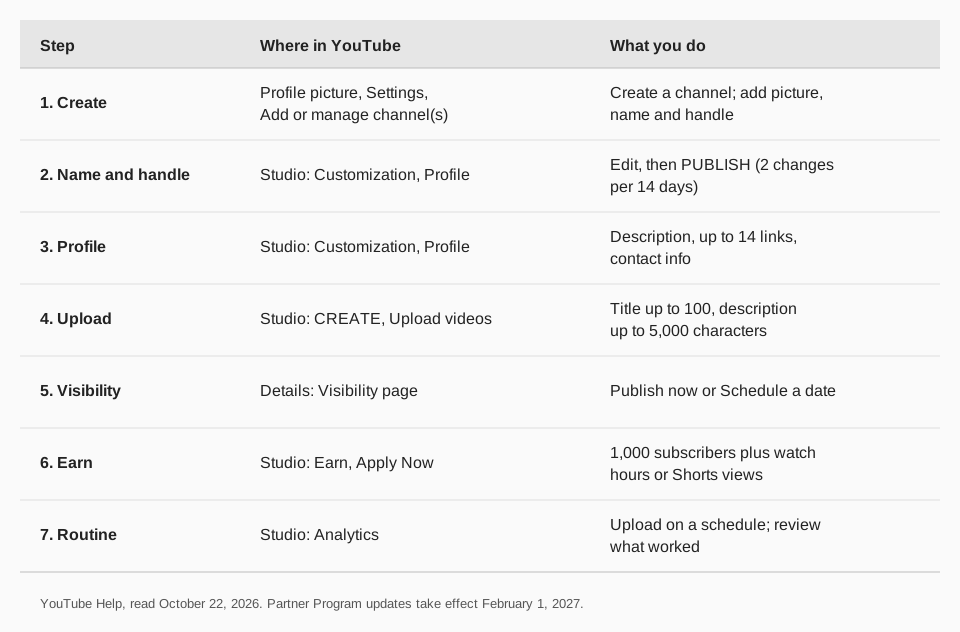
For a channel that only you manage, YouTube gives these steps on a computer or the mobile site:
- Sign in to YouTube.
- Click your profile picture, then Settings.
- Go to the Account section and select Add or manage channel(s).
- Click Create a channel.
- Choose a profile picture, type in your name and Handle.
- Click Create channel.
If you want a name different from your Google Account, or a channel with more than one manager or owner, use a Brand Account. YouTube's steps: go to your channel list, click Create a new channel (or choose a Brand Account you already manage), choose a picture, name and handle, and click Create channel. If that Brand Account already has a channel, you cannot create another on it. If you use YouTube with a supervised experience, you may not be able to create a channel.
Step 2: Choose a name and handle you can keep
YouTube's profile page says a handle is a unique identifier that makes it easier to establish a distinct presence. You can change your channel name twice in a 14-day period, and your handle twice in a 14-day period. Changing the name removes a verification badge. Pick something short that you can say aloud, and check that it matches your other accounts.
To edit later, sign in to YouTube Studio, select Customization then Profile, make the change and click PUBLISH.
Step 3: Fill in your channel profile
On the same Customization, Profile screen you can add:
- A description, shown in the channel header. Say who the channel is for and what you upload.
- Links. YouTube says you can show up to 14 links on your channel Home tab. The first is displayed prominently near the Subscribe button, and the rest show when someone clicks to see more.
- Contact info, an email address for business questions.
- Translations of your name and description, to reach a global audience.
Use a tagged link for your first link, so you can see how many visitors it sends to your site. Our guide to UTM naming conventions shows how.
How to upload your first video
Step 4: Upload
YouTube's upload page gives these steps for a computer:
- Sign in to YouTube Studio.
- Click CREATE in the top-right corner, then Upload videos.
- Select the file. You can upload up to 15 videos at a time.
- Click Edit on each file to set its details.
The details screen has these fields, with limits from the page: a Title (100 characters maximum), a Description (5,000 characters maximum), a Thumbnail, a Playlist, and an Audience setting. For Audience you are required to say whether the video is made for kids. Under SHOW MORE you find advanced settings such as altered content disclosure, automatic chapters and tags. YouTube says tags play a minimal role in discovery, other than helping with commonly misspelled content. You can't upload audio files on their own; convert them to a video first.
YouTube adds that for the best processing time you should verify your YouTube account, and that if you close the upload window before choosing visibility, the video is saved as private on your Content page in Studio.
Step 5: Choose visibility, or schedule it
On the Visibility page you decide when the video is published and who can find it. YouTube describes two options:
- Save or publish: publish now and choose Private, Unlisted or Public. Public videos can also be set as an instant Premiere.
- Schedule: pick a date to publish later. The video stays private until that date. You can also set it as a Premiere.
YouTube notes that if the account has a Community Guidelines strike, a scheduled video will not publish during the penalty period; it is set to private for that period and you have to reschedule it afterward. The page also says there is a limit to how many videos a channel can upload each day, across desktop, mobile and the API.
For more on timing, see our guides on how often to post on YouTube and the best time to post on YouTube.
What should your first videos be about?
YouTube's pages give no topic advice, so use your own judgment with a few filters:
- Pick one audience and one problem. "How to repot a plant" is a video; "gardening" is a category.
- Write the title the way someone would search it. You have up to 100 characters.
- Put the answer early. Say what the video covers in the first lines of the description.
- Make three before you judge. One video tells you almost nothing about your channel.
Short vertical videos have their own path. See our guides to posting a YouTube Short and Shorts length, size and aspect ratio.
Step 6: Know what it takes to earn money
Earning from ads needs the YouTube Partner Program (YPP). YouTube's page says a channel becomes eligible with either:
- 1,000 subscribers with 4,000 qualified watch hours in the last 12 months, or
- 1,000 subscribers with 10 million qualified Shorts views in the last 90 days.
You also need to follow the channel monetization policies, live in a supported country, have no active Community Guidelines strikes, have 2-Step Verification on, and have advanced features access and an AdSense for YouTube account linked. To apply, open YouTube Studio, select Earn and choose Apply Now. YouTube says a decision typically takes about 1 month. Our guide to how much YouTube pays per view explains what the revenue share is.
Step 7: Keep a routine you can sustain
YouTube warns that it may turn off monetization on channels that have not uploaded a video or posted to the Posts tab for 6 months or more. More important for a new channel, regular uploads give you a body of work to learn from.
A simple plan:
- Batch. Record several videos in one sitting, then upload them one at a time.
- Schedule. Set each upload's date in Visibility so the channel posts even in a busy week.
- Reuse. A clip from each video can become a Short or a post on other networks.
- Review monthly. Open Analytics in Studio, see which videos kept viewers, and make more like them.
Run your YouTube channel with TrackMedia
Once the channel exists, TrackMedia handles the upload-and-schedule routine. Connect your channel, and videos go out from the same composer you use for your other networks.
- Upload and schedule. Add the video, title (up to 100 characters), description (up to 5,000), tags and a time, or put it in a queue. YouTube publishes it at the scheduled time. A vertical video of three minutes or less is a Short automatically.
- Promote each upload. The composer fits a post to YouTube and the other 20 networks, so a new video can also be announced on Bluesky, LinkedIn, Instagram and others, with a tracked link back to the video.
- Plan on a calendar. Content collections fill queue slots, so a steady cadence does not depend on remembering.
- Read the results. Per-video analytics show views, likes, comments and engagement, with channel subscribers and lifetime views, including videos you did not publish with TrackMedia.
Create the channel itself in YouTube; TrackMedia connects to a channel that exists. The free plan includes 15 posts a month and one account per network, with no card. Start free with TrackMedia, or see how to schedule a YouTube live stream.
Questions people also ask
How do I create a YouTube channel?
Sign in to YouTube, click your profile picture, then Settings. In the Account section select Add or manage channel(s), click Create a channel, choose a picture, name and handle, and click Create channel.
How do you make a YouTube channel?
The same way: through Settings and Create a channel. If you want a business name or several managers, create a channel connected to a Brand Account from your channel list instead.
How to be a YouTuber?
Create the channel, upload videos on a regular routine, and learn from your Analytics. To earn from ads you must join the YouTube Partner Program, which has subscriber and watch-time or Shorts-view thresholds.
Do I need a separate account to start a channel?
No. A Google Account is enough for a personal channel. A Brand Account is optional, for a different name or more than one manager.
Can I schedule my first video?
Yes. On the Visibility page choose Schedule and pick a date. The video stays private until then.
How we checked this
We opened each YouTube Help page below in a browser on October 22, 2026 and expanded the collapsed sections. YouTube changes Studio menus, and a banner on the Partner Program pages says updates take effect February 1, 2027, so check the live pages. TrackMedia's limits come from reading its YouTube connector code the same day.
- Create a YouTube channel (YouTube Help): personal and Brand Account steps.
- Manage your YouTube channel's profile: name and handle rules, description, links, contact info.
- Upload YouTube videos: upload steps, field limits, visibility and scheduling.
- YouTube Partner Program overview and eligibility: thresholds and how to apply.