Yes, you can schedule posts on TikTok: on the desktop web Upload page you toggle the schedule button, pick a date and time, and click schedule. TikTok's Help Center says you can schedule a minimum of 15 minutes and a maximum of 10 days ahead, and that a scheduled post cannot be edited, only deleted.
This guide uses TikTok's Schedule video and Tools for creators Help Center pages and a TikTok for Business announcement, read on October 22, 2026. It also covers who can use the feature, what you cannot change afterward, and how TrackMedia schedules TikTok videos.
Sources: Schedule video · Tools for creators · TikTok for Business announcement
How do you schedule a post on TikTok?
TikTok's Schedule video page describes the desktop web flow:
- Log in to your account on TikTok Desktop Web and click the Upload icon at the top of your feed.
- Upload the video you want to schedule.
- Toggle the schedule button after uploading and editing, then select a date and time. The time zone defaults to your computer's setting.
- Click schedule.
The business announcement adds that before you schedule you can fill in the caption, cover image, viewer settings and comment and Duet permissions on the same page, and that scheduled posts appear with your drafts in your Profile view. Our guide to posting videos on TikTok covers the rest of the upload form.
What are the rules and limits of TikTok scheduling?
The Schedule video page lists these notes:
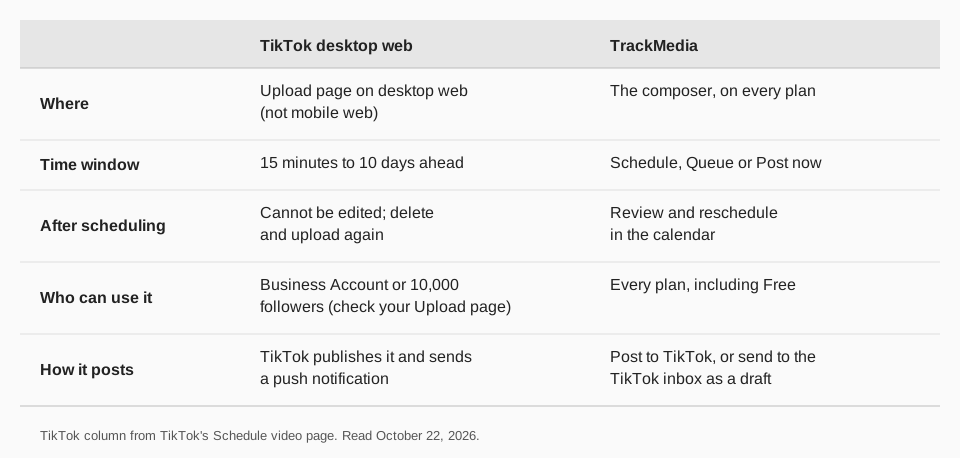
- Lead time. At least 15 minutes and at most 10 days before publishing.
- Account. The page says only a "Business Account" or an account with 10,000 followers or more can access desktop scheduling. The wording is awkward, so confirm on your own Upload page. The business announcement says that to switch to a Business Account you go to Settings then Account.
- No edits. Scheduled posts can be seen in the Profile view and cannot be edited, but they can be deleted. The announcement says you cannot change the video, caption or scheduled time, so to change anything you delete the post and upload it again.
- Notification. When a scheduled video goes live, you get a push notification.
- Mobile web. The feature is not available for TikTok Mobile Web.
The Tools for creators page lists "Upload, schedule, and edit posts" among TikTok Studio features, and warns that some features need you to meet criteria. Neither page we read gives steps for scheduling inside the phone app, so we only describe the desktop flow.
How do you see or delete a scheduled TikTok?
Open your Profile view on the web. TikTok says scheduled posts show there, alongside your drafts, and that you can delete one. There is no edit button, so rescheduling means deleting the post and scheduling the video again. That is the biggest practical limit of the native scheduler.
Does scheduling a TikTok affect views?
None of the TikTok pages we read says a scheduled post is treated differently from one posted by hand. Our post on whether scheduling a post on TikTok affects views goes through what TikTok has said. For timing ideas, see the best time to post on TikTok.
How to schedule TikTok posts with TrackMedia
With TrackMedia you schedule TikTok videos from the same composer you use for 20 other networks. In the composer, under When it goes out, choose Schedule, Queue or Post now. TrackMedia holds a scheduled post and sends it at the time you chose.
- Pick how it posts. Post to TikTok publishes directly, using the viewing options TikTok offers for that account. Send to TikTok inbox as a draft leaves the video in the TikTok app for you to finish.
- Change your mind. You can review and reschedule a post in TrackMedia's calendar before it goes out.
- Fill a queue. Queue slots can draw from a content collection, so a week of videos is one setup. See a TikTok content calendar.
- Check results. Views, likes, comments and shares per post, in one view with your other networks. See how to check TikTok analytics.
A TrackMedia schedule is separate from TikTok's own Schedule video feature, so these posts do not appear in TikTok's scheduled list. TikTok's Direct Post reference says content posted by unaudited clients is restricted to private viewing mode, so confirm the viewing option the composer shows for your account. Start free with TrackMedia (15 posts a month, one account per network, no card).
Sources: Direct Post reference
Questions people also ask
Can you schedule TikTok posts on your phone?
The Help Center pages we read describe scheduling on desktop web only, and say it is not available on mobile web. They give no steps for the phone app.
How far ahead can you schedule a TikTok?
From 15 minutes up to 10 days ahead, according to TikTok's Schedule video page.
Can you edit a scheduled TikTok?
No. TikTok says scheduled posts cannot be edited but can be deleted, so you delete and upload again.
Do you need a Business Account to schedule on TikTok?
The page says a "Business Account" or an account with 10,000 followers or more. TikTok's wording is unclear, so check your Upload page for the schedule toggle.
Why don't I see the schedule option on TikTok?
Check that you are on desktop web, not mobile web, and that your account meets the Business Account or follower condition. TikTok's Tools for creators page also says some features are not available in every region.
How we checked this
We opened each page below in a browser on October 22, 2026 and copied the steps and limits. We did not schedule a post on a live account.
- Schedule video (TikTok Help Center): steps, 15-minute and 10-day limits, account condition, no edits.
- Tools for creators (TikTok Help Center): TikTok Studio features.
- Video Scheduler announcement (TikTok for Business): web steps, Business Account switch, drafts view. The page shows no date.
- Direct Post reference (TikTok for Developers, last updated August 24, 2026): the unaudited-client restriction.
TrackMedia's behavior comes from its TikTok connector and product pages, read the same day.